Photography Tutorials


🎞️ Mini-Project 2: Photo-Film and Series

Time: 5 hours total — 4 hours of production and 1 hour of presentation and screening

Goal: Create a coherent series of five black-and-white photographs, export them as print-ready TIFF files, and assemble the same images into a 15-second photo-film using sequencing, duration, rhythm, and sound.

You will work with a partner for technical support, location safety, camera assistance, and feedback. Each participant must photograph, edit, print, assemble, and present their own project.

Production schedule

Stage Suggested time
Review examples 15 minutes
Plan the series and photo-film 15 minutes
Prepare the camera and location 10 minutes
Photograph the sequence 50 minutes
Transfer and select photographs 15 minutes
Edit and export the TIFF series 70 minutes
Assemble and export the photo-film 55 minutes
Complete the final check 10 minutes
Presentation and screening 60 minutes

1. Review the examples Examine how artists use still photography, sequencing, duration, rhythm, atmosphere, and sound.

La Jetée

Stills from La Jetée by Chris Marker

La Jetée (1962), directed by Chris Marker, constructs a narrative almost entirely through still photographs. Meaning develops through image order, duration, repetition, sound, narration, and the relationship between one photograph and the next.

Watch La Jetée

Año Uña

Stills from Año Uña by Jonás Cuarón

Año Uña (2007), directed by Jonás Cuarón, uses family photographs to construct a fictional narrative. Character, rhythm, and progression emerge through image selection, uneven timing, repetition, and post-production.

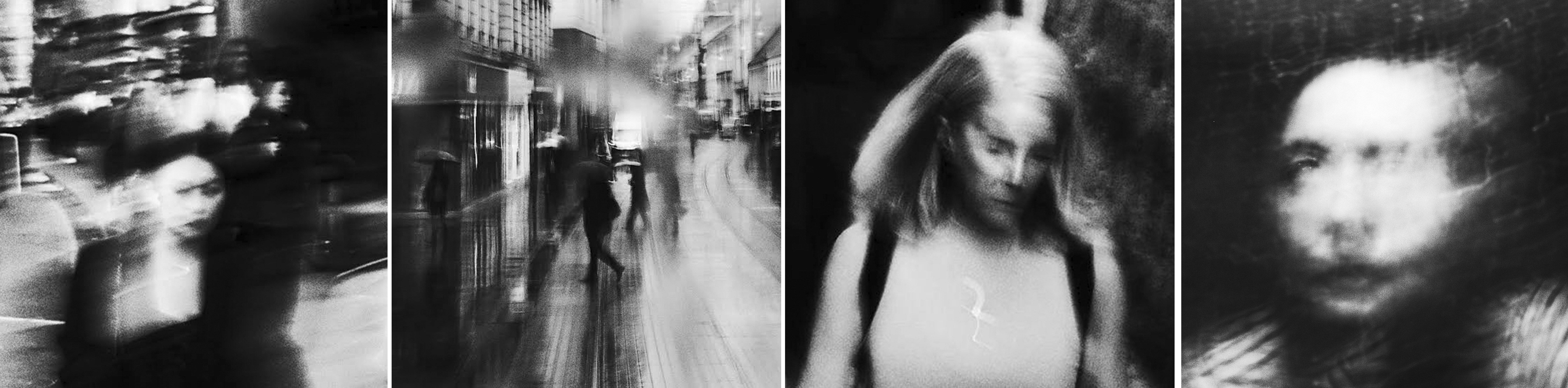
Olga Karlovac

Olga Karlovac Photographs

Olga Karlovac photographs fleeting moments, movement, shadow, atmosphere, and abstraction. Her black-and-white street photography demonstrates how blur, contrast, darkness, framing, and partial views can transform everyday observation into visual poetry.

Student photo-films

Students in MEDIAART 2B06 created concise photo-films using black-and-white still images, sequencing, duration, and sound.

View the online gallery

2. Understand the project Create five photographs that work as both a printed series and a time-based sequence.

Project concept

Create an observational micro-narrative using five photographs made in one general location.

An observational micro-narrative may focus on:

  • A person moving through a place
  • A repeated action or gesture
  • A gradual reveal of a subject
  • A relationship between a person, object, and location
  • A change in distance, light, focus, or perspective
  • An overlooked event or detail
  • A particular atmosphere
  • A visual pattern that develops across several photographs

The idea must be communicated through the photographs rather than through dialogue or explanatory text.

One project, two outcomes

Printed series

The five photographs will be printed and displayed in a specific order. Meaning develops through image selection, consistent format, repetition, variation, and movement from one print to the next.

Photo-film

The same five photographs will be arranged in DaVinci Resolve (video editing software). Meaning develops through image order, duration, rhythm, pacing, cuts, sound or intentional silence, titles, and credits.

Do not treat the photo-film as a slideshow of unrelated images. Both outcomes must communicate one coherent idea.

Project requirements

  • Create five final photographs
  • Photograph in colour and convert the final images to black and white
  • Use landscape orientation
  • Aspect Ratio (choose one):
    • Horizontal: 16:9
    • Vertical: 9:16
    • Square: 1:1
    • Standard horizontal: 4:3
  • Create all photographs during the activity
  • Work within one general location
  • Use at least three different shot sizes
  • Use one or two compositional frameworks
  • Make intentional decisions about depth of field
  • Do not use dialogue
  • Do not use video footage
  • Do not animate the photographs
  • Do not use generated imagery
3. Plan the photograph sequence Select one observational idea and plan five images that create progression, variation, and visual continuity.

Select one location and idea

Choose a location that can be reached quickly and photographed safely.

Your project may focus on:

  • A person completing one simple action
  • An object being moved, used, opened, closed, or transformed
  • A path through a location
  • A sequence of shadows or reflections
  • A relationship between architecture and the body
  • A change from a wider view to a small detail
  • A repeated shape, texture, colour, or gesture
  • An atmosphere created by light, weather, or movement

Plan the five photographs

Use this structure as a starting point:

  1. Establish: Introduce the location, subject, or situation.
  2. Approach: Move closer or reveal an important relationship.
  3. Develop: Show an action, gesture, detail, or visual change.
  4. Shift: Introduce contrast, interruption, movement, or a new perspective.
  5. Conclude: End with resolution, ambiguity, or a final observation.

The sequence does not need to tell a literal story. It must create a clear visual progression.

Use shot sizes intentionally

Include at least three:

  • Long shot
  • Full shot
  • Medium full shot
  • Medium shot
  • Medium close-up
  • Close-up
  • Extreme close-up

Check the 📐 Photography Composition Reference Guide.

Use composition and depth

Use one or two compositional frameworks consistently:

  • Rule of thirds
  • Leading lines
  • Centred and symmetrical composition
  • Golden ratio
  • Repetition
  • Framing within the frame
  • Foreground, middle-ground, and background

Review:

Complete a quick sequence plan

Photograph Purpose Shot size Main subject Composition or depth decision
1 Establish      
2 Approach      
3 Develop      
4 Shift      
5 Conclude      

Keep the plan simple. You have 15 minutes for planning. Remain open to unexpected details and visual relationships while photographing.

4. Prepare the camera Confirm the image format, exposure, focus, white balance, and stabilization before photographing.

Review:

Photo-Film and Series camera setup

Establish the starting exposure

Begin with:

Aperture: f/8
Shutter speed: 1/125
ISO: 400

Take a test photograph and review focus, histogram, highlight detail, shadow detail, movement, and depth of field.

Adjust the settings according to the scene:

  • Use a faster shutter speed when movement must appear sharp.
  • Use a slower shutter speed when motion blur is intentional.
  • Use a lower f-number for a shallower depth of field.
  • Use a higher f-number when more of the scene must remain sharp.
  • Increase ISO only when the required aperture and shutter speed produce an unusably dark photograph.

The exposure settings may change between compositions. The five final photographs must still have a consistent overall brightness, contrast, and visual treatment.

5. Photograph the sequence Create several options for each planned image while maintaining continuity across the sequence.

You have approximately 50 minutes to photograph.

Working in pairs

Work with a partner for technical support, tripod assistance, feedback, continuity, participation as a subject, and safety. Each participant must create a separate project.

Do not photograph identifiable strangers without permission. Do not block entrances, hallways, classrooms, paths, or accessibility routes.

Photographing process

For each planned photograph:

  1. Establish the shot size and composition.
  2. Select the focal length.
  3. Move the camera to the required distance.
  4. Adjust the aperture, shutter speed, and ISO.
  5. Refocus manually.
  6. Check the edges of the frame.
  7. Take a test photograph.
  8. Review the histogram and magnify the focus point.
  9. Make corrections.
  10. Photograph at least three usable variations.

Aim to create approximately 15–20 photographs in total. You will select five.

Before leaving the location

Five-photograph sequence check
6. Transfer and select the photographs Copy all camera files, create the project folders, and select five images that work as one sequence.

Create the project folder

Name-Lastname-Photo-Film-Series/
├── RAW/
├── JPEG/
├── Selected-RAW/
├── PSD/
├── TIFF-Print/
├── Audio/
└── Exported-Video/

Transfer the files

  1. Turn off the camera.
  2. Remove the SD card.
  3. Insert the card into a card reader.
  4. Copy all RAW files into the RAW folder.
  5. Copy all JPEG files into the JPEG folder.
  6. Confirm that several files open correctly.
  7. Do not work directly from the SD card.

Select five photographs

Select images that:

  • Communicate one observational idea
  • Have accurate focus
  • Preserve the required highlight and shadow detail
  • Include useful changes in shot size and distance
  • Use composition intentionally
  • Work together in a clear order
  • Can be cropped consistently depending on the selected aspect ratio.
  • Avoid unnecessary repetition

Copy the matching RAW files into the Selected-RAW folder.

Rename the selected RAW files

Name-Lastname-Series-01.CR2
Name-Lastname-Series-02.CR2
Name-Lastname-Series-03.CR2
Name-Lastname-Series-04.CR2
Name-Lastname-Series-05.CR2

Select the photographs as a group. Every image must contribute something necessary to the sequence.

7. Edit and export the printed series Convert the RAW photographs in color, create a consistent treatment, save PSD files, and export print-ready TIFF files.

You have approximately 70 minutes for this stage.

Review 🖼️ RAW Photography and Image Editing.

The printed series must remain in colour. Edit the five photographs as a group so they share a consistent colour, tonal, and visual treatment.

1. Adobe Camera Raw: Establish the visual treatment

Open the five selected .CR2 files in Adobe Camera Raw and arrange them in sequence.

For all five photographs:

  • Correct exposure
  • Adjust contrast
  • Preserve important highlight detail
  • Preserve required shadow detail
  • Refine whites and blacks
  • Adjust texture or clarity carefully
  • Avoid excessive sharpening
  • Avoid heavy noise reduction that removes important detail

2. Photoshop: Maintain consistency

Save the Photoshop Files

After completing the colour and tonal adjustments in Adobe Camera Raw, open each developed photograph in Photoshop.

For each photograph:

  1. Select File → Save As.
  2. Save the file in the PSD folder.
  3. Select Photoshop (.PSD) as the file format.
  4. Confirm that Layers is enabled when the option appears.
  5. Save the files using this naming sequence:
Name-Lastname-Series-01.psd
Name-Lastname-Series-02.psd
Name-Lastname-Series-03.psd
Name-Lastname-Series-04.psd
Name-Lastname-Series-05.psd

Keep layers enabled.

Format and Size

You may recompose, crop, straighten, flip, or rotate the photographs during editing. However, all five photographs must use the same final format and dimensions.

  • Horizontal: 16:9 — 3200 × 1800 pixels
  • Vertical: 9:16 — 1800 × 3200 pixels
  • Square: 1:1 — 3000 × 3000 pixels
  • Standard horizontal: 4:3 — 3000 × 2250 pixels

Across the complete series, maintain:

  • The same orientation
  • The same aspect ratio
  • The same pixel dimensions
  • The same sRGB colour space
  • A related colour treatment
  • Consistent brightness and contrast
  • A consistent level of texture, clarity, and saturation

The individual photographs may require slightly different corrections, but the final series should feel visually unified.

3. Compare the photographs together

Before exporting:

  1. Open all five photographs.
  2. View them at the same size.
  3. Arrange them in sequence.
  4. Compare colour, exposure, contrast, crop, and visual weight.
  5. Adjust any image that appears disconnected from the others.

Ask:

  • Does one photograph appear noticeably warmer or cooler?
  • Does one photograph appear much brighter or darker?
  • Is the contrast consistent across the series?
  • Are the colours related without looking identical?
  • Do all five photographs use the same dimensions and aspect ratio?
  • Does one image feel visually heavier or lighter than the others?
  • Does the sequence create a clear visual progression?
  • Does every photograph contribute something necessary to the series?

Export print-ready TIFF files

For each photograph:

  1. Select File → Save a Copy or File → Save As.
  2. Select TIFF (.tif).
  3. Use:
    • Bit depth: 8 Bits/Channel
    • Colour profile: sRGB
    • Embed Colour Profile: Enabled
    • Image compression: LZW or ZIP
    • Layers: Off for the print copy
  4. Save in the TIFF-Print folder.
Name-Lastname-Series-01.tif
Name-Lastname-Series-02.tif
Name-Lastname-Series-03.tif
Name-Lastname-Series-04.tif
Name-Lastname-Series-05.tif

The professor will collect the final TIFF files and work with each student during the printing process.

Before printing, confirm that:

  • All five TIFF files are complete
  • The filenames follow the required sequence
  • The photographs use the same dimensions and aspect ratio
  • The colour and tonal treatment is consistent
  • The files open correctly
8. Assemble the 15-second photo-film Import the five TIFF photographs into Premiere Pro and use sequence, duration, rhythm, sound, titles, and simple transitions.

You have approximately 55 minutes for this stage.

DaVinci Resolve Tutorials

  • 🎥 Intro to Linear Video Editing
    Learn how to create a project, import and organize recordings, edit clips on a timeline, add transitions and effects, and export a finished video.

Create the DaVinci Resolve project

  1. Open DaVinci Resolve.
  2. In the Project Manager, select New Project.
  3. Name the project:
Name-Lastname-Photo-Film
  1. Select Create.
  2. Open Project Settings using the gear icon in the lower-right corner.
  3. Set:
Timeline frame rate: 30 fps
Playback frame rate: 30 fps
  1. Select Save.

Set the frame rate before importing and editing the photographs.

Create the timeline

  1. Select File → New Timeline.
  2. Name the timeline:
Name-Lastname-Photo-Film
  1. Disable Use Project Settings so you can enter the required timeline resolution.
  2. Select one format for the complete photography series and photo-film.
Format Photograph dimensions Timeline resolution
Horizontal 16:9 1920 × 1080 pixels  
Vertical 9:16 1080 × 1920 pixels  
Square 1:1 1080 × 1080 pixels  
Standard horizontal 4:3 1440 × 1080 pixels  
  1. Set:
Timeline frame rate: 30 fps
Playback frame rate: 30 fps
  1. Select Create.

Timeline requirements

  • Duration: 12-17 seconds
  • Number of photographs: Five
  • Frame rate: 30 fps
  • Aspect ratio: Must match the selected photography-series format
  • Video footage: Not permitted

Import the photographs

Import the five TIFF files from the TIFF-Print folder.

The photo-film must contain:

  • Five still photographs
  • A simple title
  • Your name
  • A final audio credit when sourced audio is used

Audio

You can only use audio from Freesound.

Choose one instrumental, ambient, or environmental sound that supports the photographs without overwhelming them.

Avoid audio that is:

  • Too loud or aggressive
  • Extremely dense or busy
  • Dominated by sudden changes
  • Longer or more complex than the project requires
  • Distracting from the rhythm of the images
  • Difficult to fade within the 15-second duration

Before downloading:

  1. Check the licence and attribution requirements.
  2. Record the audio title.
  3. Record the creator’s name.
  4. Save the original audio file in the Audio folder.

Arrange the sequence

Consider:

  • Which photograph opens the work
  • How long each image remains visible
  • Where the pace becomes faster or slower
  • Whether one image should create a longer pause
  • How visual direction moves between frames
  • How wide and close images relate
  • How light, contrast, shapes, and subject placement connect
  • How the ending differs from the beginning

The photographs do not need equal durations.

Titles and credits

Include:

  • Project title
  • Your name
  • Year
  • Audio title and creator name when sourced audio is used

Example:

Audio: “Track Title” — Creator Name

Keep typography simple and readable.

Permitted transitions

You may use:

  • Straight cuts
  • Fade in
  • Fade out
  • Simple cross-dissolves

Do not use:

  • Stylized transitions
  • Motion presets
  • Camera-movement effects
  • Animated zooms or pans
  • Filters
  • Colour effects
  • Additional visual effects

The photographs must remain still. Create rhythm through image order and duration rather than animation.

Export the photo-film

  1. Open the Deliver page.
  2. Select Custom Export.
  3. Enter the filename:
Name-Lastname-Photo-Film.mp4
  1. Select the Exported-Video folder as the location.
  2. Set:
Render: Single Clip
Format: MP4
Codec: H.264
Frame rate: 30 fps
  1. Set the resolution to match the selected timeline format:
Format Export resolution
Horizontal 16:9 1920 × 1080
Vertical 9:16 1080 × 1920
Square 1:1 1080 × 1080
Standard horizontal 4:3 1440 × 1080
  1. Open the Audio settings and confirm:
Export Audio: On
Codec: AAC
  1. Set the render range to Entire Timeline.
  2. Select Add to Render Queue.
  3. In the Render Queue, select Render All.
  4. Check the exported file.
9. Complete the final quality check Confirm that the printed series and photo-film are complete, consistent, correctly formatted, and ready to present.

Printed series check

Five-photograph TIFF series

Photo-film check

15-second photo-film

Required files

Name-Lastname-Photo-Film-Series/
├── TIFF-Print/
│   ├── Name-Lastname-Series-01.tif
│   ├── Name-Lastname-Series-02.tif
│   ├── Name-Lastname-Series-03.tif
│   ├── Name-Lastname-Series-04.tif
│   └── Name-Lastname-Series-05.tif
└── Exported-Video/
    └── Name-Lastname-Photo-Film.mp4
10. Present the series and screen the photo-film Use the final hour to display the printed photographs, screen the photo-film, and participate in a short group discussion.

Time: 60 minutes

Prepare the presentation

Arrange the five prints in the intended order. Open the exported MP4 and confirm that it is ready to play.

Each participant will have approximately 3–4 minutes.

Present in this order:

1. Printed photography series
2. Photo-film screening
3. Brief explanation

For both outcomes, briefly explain:

  • What you observed
  • What changed across the five photographs
  • What remained visually consistent
  • How sequencing affected the meaning

Finish by sharing:

  • One result, problem, or discovery
  • One compositional or editing decision that worked well
  • One difference between viewing the photographs as prints and viewing them as a photo-film

Listen and participate

While viewing the work of others:

  1. Observe the printed sequence before the screening.
  2. Watch the complete photo-film.
  3. Identify one specific visual or time-based decision.
  4. Contribute one respectful comment or question.

Useful comments include:

  • “The close-up changes the meaning of the wider establishing image.”
  • “The longer duration of the fourth image creates a strong pause.”
  • “The black-and-white treatment remains consistent across the prints.”
  • “The sound creates a different atmosphere than the printed series.”
  • “The sequence moves clearly from the location to a small detail.”
  • “The final photograph creates an effective unresolved ending.”

Avoid vague comments such as:

“It looks good.”

Identify the specific photographic, sequencing, editing, or sound decision that worked.

Reflection questions

  1. How did the meaning change when the photographs were viewed as prints and as a timed sequence?
  2. Which photograph was most important to the sequence, and why?
  3. How did duration, pacing, or sound affect the photo-film?
  4. Which visual decision helped the five photographs feel like one series?
  5. What would you change if you had more production time?

Credits: Jessica A. Rodríguez