Photography Tutorials


πŸ“Έ Manual Mode and Shutter Speed

Time: 30 minutes

Goal: Learn how Manual mode controls exposure and how shutter speed affects brightness, frozen movement, and motion blur.


1. Understand Manual Mode and Shutter Speed Learn how Manual mode provides direct control over exposure and how shutter speed changes the appearance of movement.

Why use Manual mode?
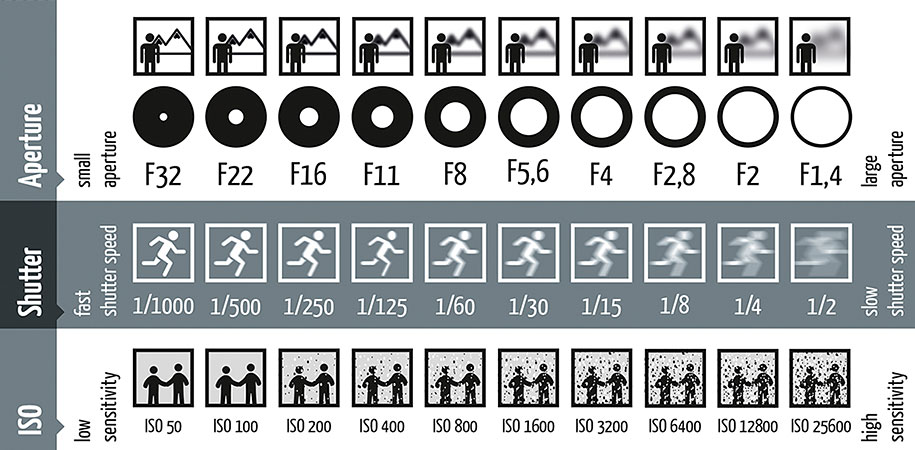
Quick reference showing the relationship between aperture, shutter speed, ISO.

Manual mode (M) gives you direct control over the three main exposure settings:

  • Aperture: Controls how much light enters the camera and affects depth of field.
  • Shutter speed: Controls how long the camera sensor is exposed to light and how movement appears.
  • ISO: Controls how strongly the camera amplifies the image signal. Higher ISO values produce a brighter image but may increase digital noise.

In Manual mode, the camera does not automatically adjust the aperture or shutter speed to correct the exposure. You must select and evaluate each setting.

Shutter speed
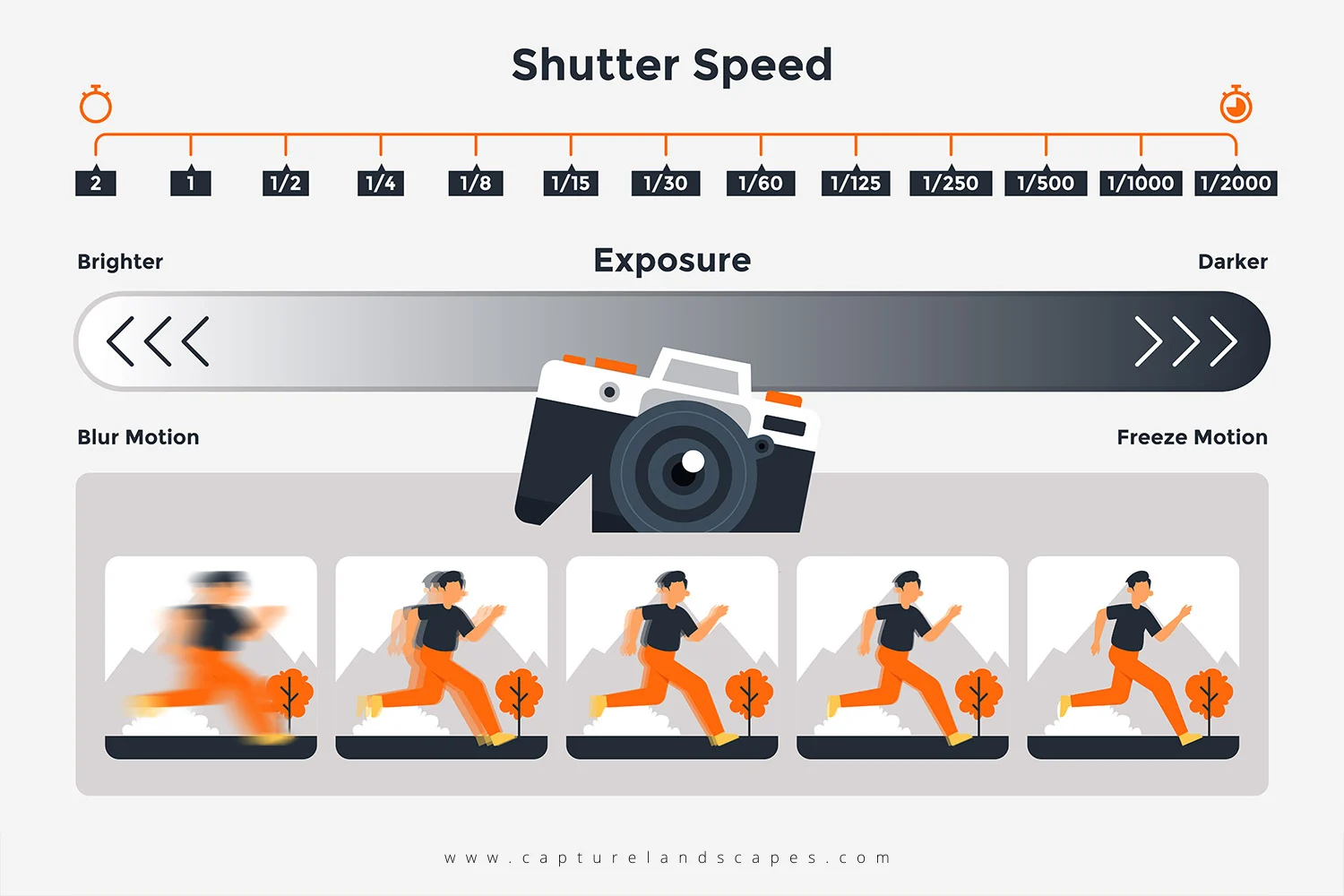
Shutter-speed scale comparing slower and faster shutter speeds and their effects on movement and exposure.
Shutter-speed scale: Faster shutter speeds freeze movement, while slower shutter speeds create more motion blur.
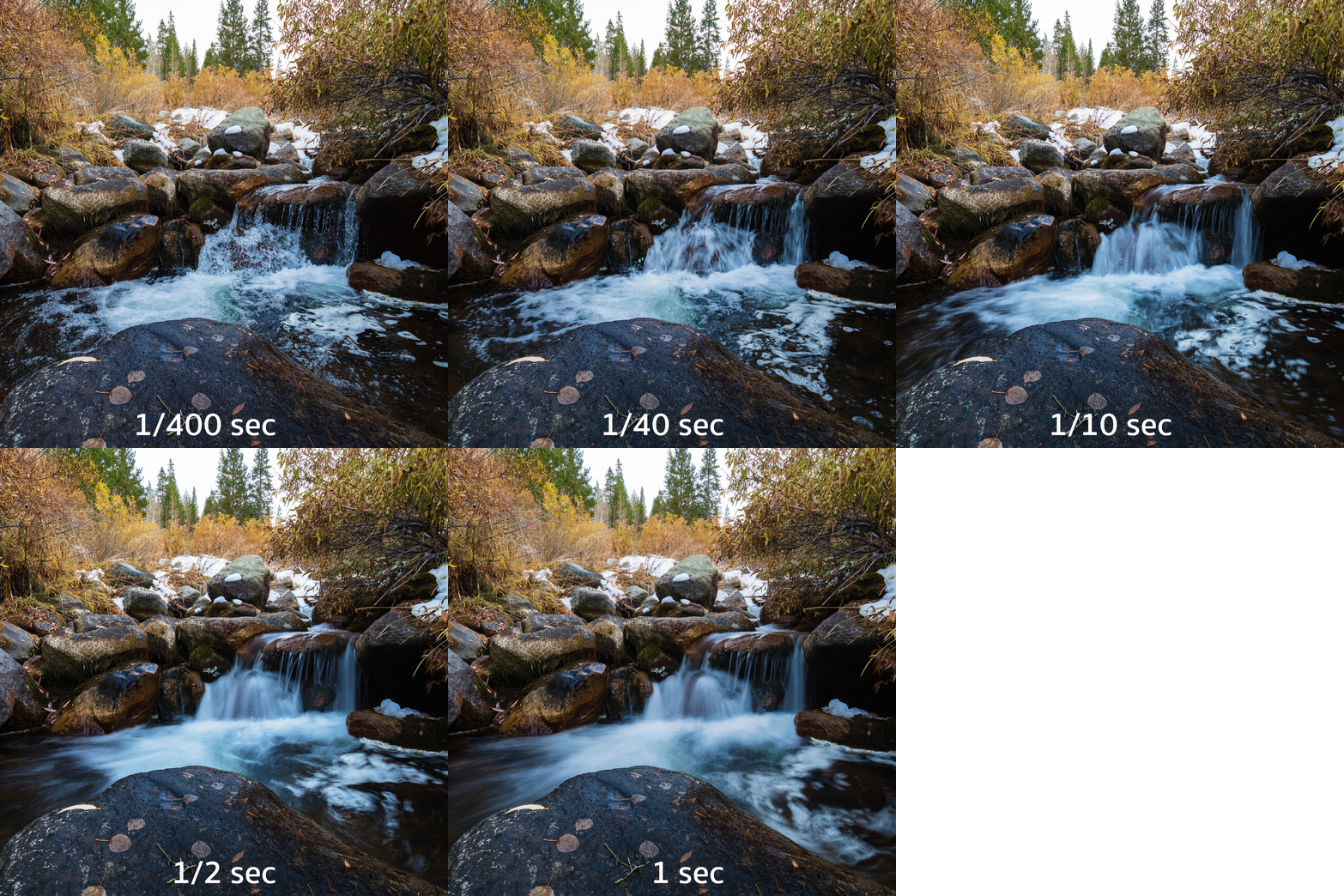
Animated comparison showing how different shutter speeds affect movement and image brightness.
Shutter-speed comparison: The same movement photographed using different exposure times.

Shutter speed controls how long the camera sensor is exposed to light.

  • A fast shutter speed records a brief moment, freezes movement, and allows less light to reach the sensor.
  • A slow shutter speed records movement over a longer period, creates motion blur, and allows more light to reach the sensor.

Shutter speed is written as a fraction of a second:

1/1000
1/500
1/250
1/125
1/60
1/30
1/15
1/8

A larger denominator represents a faster shutter speed. For example:

  • 1/1000 is faster than 1/30.
  • 1/1000 exposes the sensor for less time.
  • 1/30 exposes the sensor for more time.

Shutter speed in Manual mode

Because the camera is in Manual mode, it will not automatically compensate as the shutter speed changes.

As a result:

  • Faster shutter speeds will generally produce darker photographs.
  • Slower shutter speeds will generally produce brighter photographs.
  • The appearance of movement will change from frozen action to visible motion blur.

This activity demonstrates how shutter speed affects both movement and exposure.

Use the histogram

In Manual mode, the camera does not automatically correct the exposure. The histogram provides a visual record of how the selected aperture, shutter speed, and ISO affect the distribution of tones in the photograph.
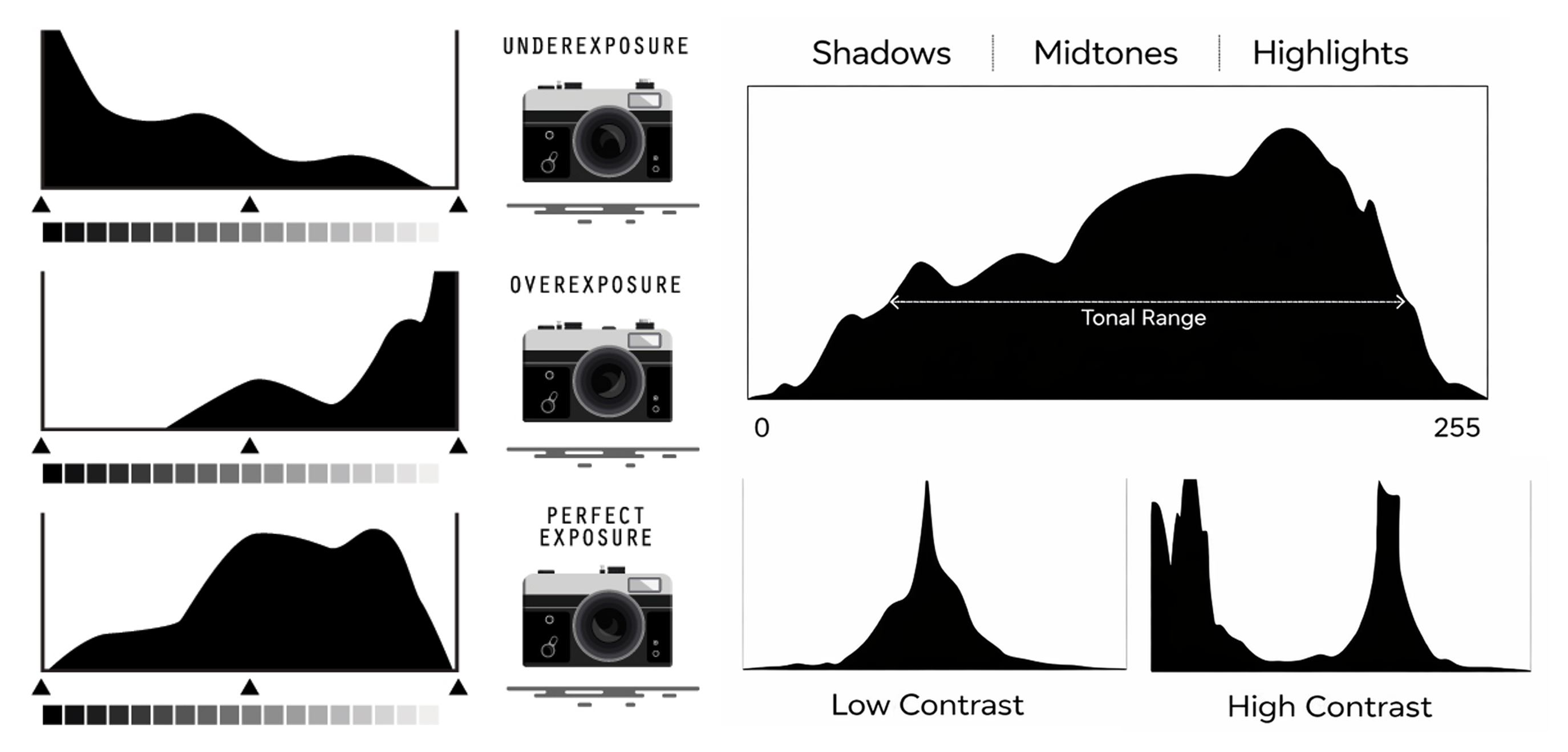
Camera display showing an exposure histogram

Use the histogram to evaluate the image after each exposure:

  • The left side represents shadows and darker tones.
  • The middle represents midtones.
  • The right side represents highlights and brighter tones.
  • A graph pressed against the left edge may indicate blocked shadows with little or no visible detail.
  • A graph pressed against the right edge may indicate clipped highlights with lost detail.

The histogram does not need to be centred. Its shape depends on the subject, background, lighting, and intended visual result. A dark scene may naturally contain more information on the left, while a bright scene may contain more information on the right.

Subject movement and camera movement

Motion blur can come from:

  • Subject movement: The subject moves while the camera remains stationary. This requires a tripod.
  • Camera movement: The camera moves while the shutter is open.
  • Both: The subject and camera move during the exposure.
βš™οΈ Technical Card: Shutter Speed

Time: 45–60 minutes

Goal: Photograph one repeated movement at six shutter speeds and create a GIF comparing frozen action and motion blur.

You will work with a partner for camera setup, tripod support, repeated movement, and feedback. Each participant must photograph and create their own Shutter Speed Technical Card.


2. Prepare the camera Set the camera to Manual mode and establish a fixed aperture and ISO so that only the shutter speed changes during the comparison.

Establish the fixed exposure settings

Shutter speed comparison settings

Keep the aperture, ISO, white balance, focus, focal length, framing, camera position, subject, background, and lighting unchanged. The only setting that should change during the final sequence is the shutter speed.

3. Photograph the shutter-speed comparison Plan one repeatable movement and photograph it at six shutter speeds while keeping ISO, white balance, framing, focal length, and focus unchanged.

What the comparison should demonstrate

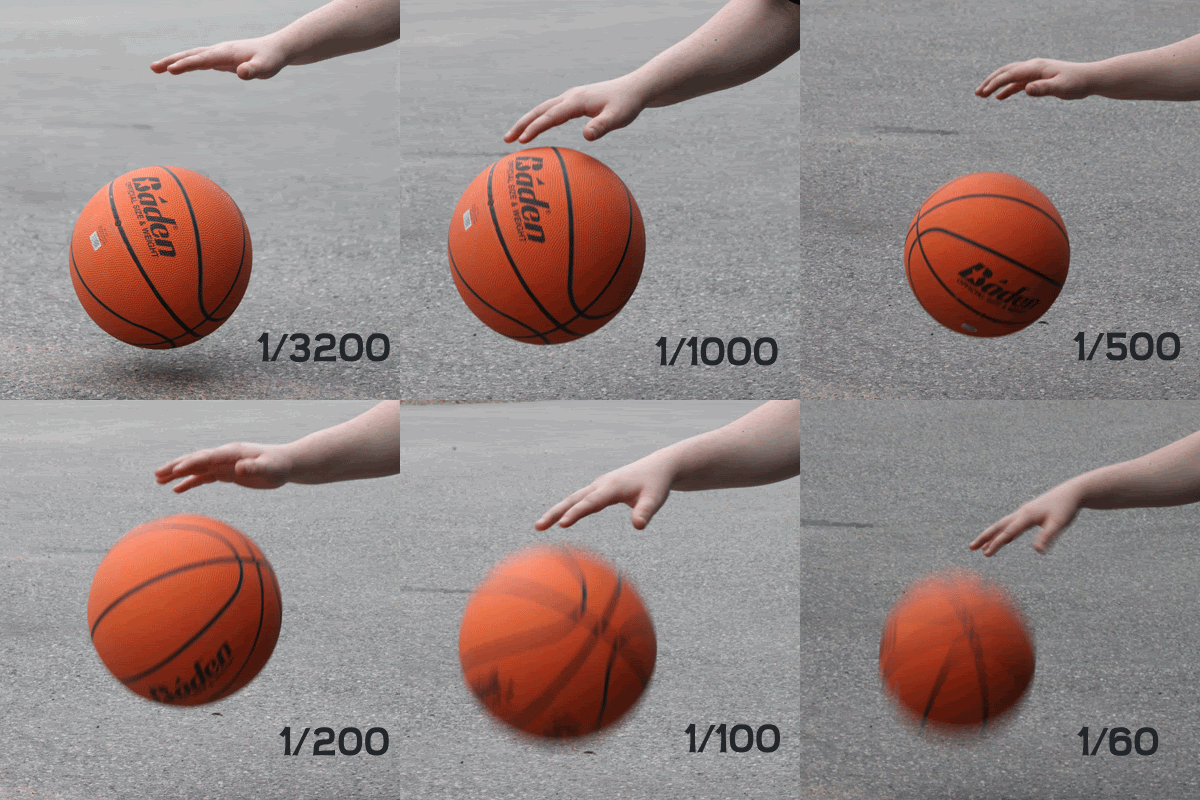
The Shutter Speed GIF should demonstrate how movement changes from frozen action to motion blur as the shutter speed becomes slower.

Shutter-speed comparison showing the same movement photographed at progressively slower shutter speeds.
Example 1: A repeated body movement photographed from a stationary camera.
Shutter-speed comparison showing an object changing from frozen movement to visible motion blur.
Example 2: A moving object photographed against a contrasting background.

For this exercise, the camera must remain stationary on a tripod.

Do not move the tripod, reframe the composition, change the focal length, or refocus during the sequence. Only the subject should move, repeating the same action at each shutter speed.

Movement and location requirements

Choose one movement that can be repeated consistently.

Examples include:

  • Walking or running across the frame
  • Jumping
  • Spinning
  • Moving fabric
  • Rolling or throwing an object
  • A repeated hand or body gesture
  • Moving water

Select a location with:

  • Enough space to complete the movement safely
  • A clear and contrasting background
  • Stable lighting
  • Minimal pedestrian traffic
  • A safe and level place for the tripod
  • A clearly defined starting and ending area

A tripod is required. Do not complete the Shutter Speed comparison handheld.

Plan the composition

Before photographing, decide:

  • Where the movement will begin and end
  • Where the subject should appear in the frame
  • Whether the movement will travel horizontally, vertically, or diagonally
  • Which compositional strategy will organize the image
  • Which area should remain in focus
  • How the background will help make the movement visible

Check πŸ“ Photography Composition Reference Guide.

Photograph the six shutter speeds

Photograph the same repeated movement using:

  1. 1/1000
  2. 1/500
  3. 1/250
  4. 1/125
  5. 1/60
  6. 1/30

When the location and exposure allow, you may also experiment with:

  • 1/15
  • 1/8

Photographing and backup procedure

At each shutter speed:

  1. Set the required Shutter Speed.
  2. Take the first photograph.
  3. Review the photograph on the camera.
  4. Magnify the main subject to check focus.
  5. Check for camera movement, subject movement, or unexpected blur.
  6. Take a second photograph using the same settings as a backup.
  7. Take a third photograph only when one of the first two has a visible problem.

You will select the strongest photograph from each pair when creating the GIF.

Record the settings

Record the information on the Technical Cards Handout.

Frame Shutter Speed ISO Aperture Movement Result
1 1/1000 Β  Β  Β 
2 1/500 Β  Β  Β 
3 1/250 Β  Β  Β 
4 1/125 Β  Β  Β 
5 1/60 Β  Β  Β 
6 1/30 Β  Β  Β 
5. Transfer, review, and organize the photographs Import all camera files, review the JPEG photographs, select one image for each setting, and rename the selected files.

Transfer all files

The camera will save recorded photographs twice: once as a .JPEG file and once as a RAW file (.CR2).

  1. Turn off the camera.
  2. Remove the SD card.
  3. Insert the SD card into a card reader.
  4. Create the main project folder on the computer.
  5. Copy all RAW and JPEG files from the SD card into the project folder.
  6. Confirm that the files open correctly on the computer.
  7. Do not work directly from the SD card.

Add a Shutter-Speed folder to your existing project folder:

Name-Lastname-Technical-Cards/
β”œβ”€β”€ Aperture/
β”œβ”€β”€ ISO/
β”œβ”€β”€ Shutter-Speed/
β”‚   β”œβ”€β”€ RAW/
β”‚   β”œβ”€β”€ JPEG/
β”‚   └── Selected/
β”‚   └── Exported-JPEG/
└── White-Balance/

Review the JPEG photographs

Open the JPEG folder for each comparison and check every photograph.

For each camera setting:

  1. Compare the photographs taken at that setting.
  2. Confirm that the main subject is sharp.
  3. Check for camera movement or subject movement.
  4. Confirm that the framing remained consistent.
  5. Check that no person or unexpected object entered the composition.
  6. Select the strongest photograph.
  7. Copy the selected JPEG into the corresponding Selected folder.

Copy the selected files rather than moving them. Keep all original JPEG and RAW files in their existing folders.

Do not delete the additional JPEG photographs or RAW files.

Rename the selected Aperture JPEG files

Rename the six selected files in order:

01-1000.jpg
02-500.jpg
03-250.jpg
04-125.jpg
05-60.jpg
06-30.jpg

If the location allowed:

07-15.jpg
08-8.jpg
6. Create GIF in Photoshop Label the photographs, load them as layers, and export looping GIF files.

For this activity, use only the JPEG files in each Selected folder.

1. Add information to each selected photograph

  1. Open the photograph in Photoshop:
    • Right-click the file.
    • Select Open With β†’ Adobe Photoshop.
  2. Select the Type Tool (T).
  3. Add the setting shown in the photograph:
    • Aperture: 1/1000, 1/500, 1/250, etc.
  4. Use a simple, readable sans-serif font.
  5. Keep the font, size, alignment, and colour consistent across all six photographs.
  6. Position the label in the same place on every photograph.
  7. Use View β†’ Rulers and drag guides from the rulers to align the labels consistently.
  8. Make sure the text is clearly visible against the photograph. Add a simple solid background behind the text when necessary.
  9. Save image: File β†’ Save

Check the Photoshop Text Tool and ruler tutorials below before adding the labels. Repeat the same process with each image.

2. Create a new Photoshop document

Follow the video tutorial below, then use these document settings.

  1. Open Photoshop.
  2. Select File β†’ New.
  3. Enter the following settings:
    • Width: 1920 pixels
    • Height: 1080 pixels
    • Orientation: Landscape
    • Resolution: 150 pixels/inch
    • Colour Mode: RGB Colour
  4. Click Create.
  5. Continue to the next step.

3. Create the GIF

Follow the video tutorial below to create a frame animation in Photoshop.

  1. In Photoshop, select File β†’ Scripts β†’ Load Files into Stack.
  2. Click Browse.
  3. Select the six labelled JPEG files from the corresponding Selected folder.
  4. Click Open, then click OK.
  5. In the Layers panel, confirm that each photograph appears on a separate layer.
  6. Select Window β†’ Timeline.
  7. In the Timeline panel, select Create Frame Animation.
  8. Open the Timeline panel menu.
  9. Select Make Frames From Layers.
  10. Confirm that the frames appear in the correct order:
    • Shutter Speed: faster to slower value
  11. When the frames appear in reverse order:
    • Select all frames.
    • Open the Timeline panel menu.
    • Select Reverse Frames.
  12. Select all six frames.
  13. Set the duration to approximately 1.5 seconds per frame.
  14. Set the looping option to Forever.
  15. Press Play and review the complete animation.
  16. Continue to the next step.

Export GIF

  1. Select File β†’ Export β†’ Save for Web (Legacy).
  2. Select GIF.
  3. Confirm that looping is set to Forever.
  4. Save as Name_Shutter-Speed-Card.gif

Open the exported GIF in a web browser and watch it from beginning to end.

7. Return the camera to the base settings Reset the camera after the shutter-speed comparison so it is ready for the next photography activities.

After completing the Shutter Speed GIF and transferring all files, return the camera to the following base settings.

Base settings for the next activities

What is next?

Continue with πŸ“· Focal Length, Camera Distance, Perspective, and Depth of Field + βš™οΈ Technical Card: Focal Length and Distance


Credits: Jessica A. RodrΓ­guez