Photography Tutorials


πŸ”­ Focal Length, Camera Distance, Perspective, and Depth of Field

Time: 30 minutes

Goal: Learn how focal length changes field of view, how camera position changes perspective, and how focal length, distance, aperture, and background distance affect depth of field.


1. Understand focal length, camera distance, perspective, and depth of field Learn how focal length changes field of view, how camera position changes perspective, and how several controls work together to shape depth.

Focal length and field of view

Focal length is measured in millimetres (mm). It affects how much of the scene appears inside the frame.
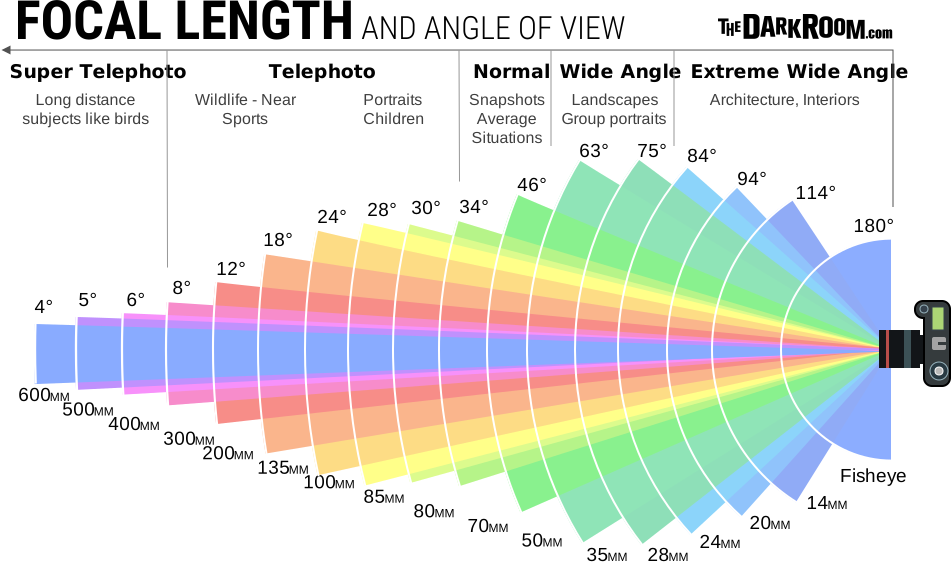
Diagram comparing the field of view produced by different focal lengths

With the Canon 18–135 mm lens:

  • 18 mm produces a wider field of view.
  • 50 mm produces a narrower field of view.
  • 135 mm produces a much narrower field of view.

A wider focal length includes more of the surrounding environment. A longer focal length includes a smaller section of the scene and makes distant details appear larger within the frame.

Changing focal length changes the field of view. It does not change perspective when the camera remains in exactly the same position.

Set the focal length

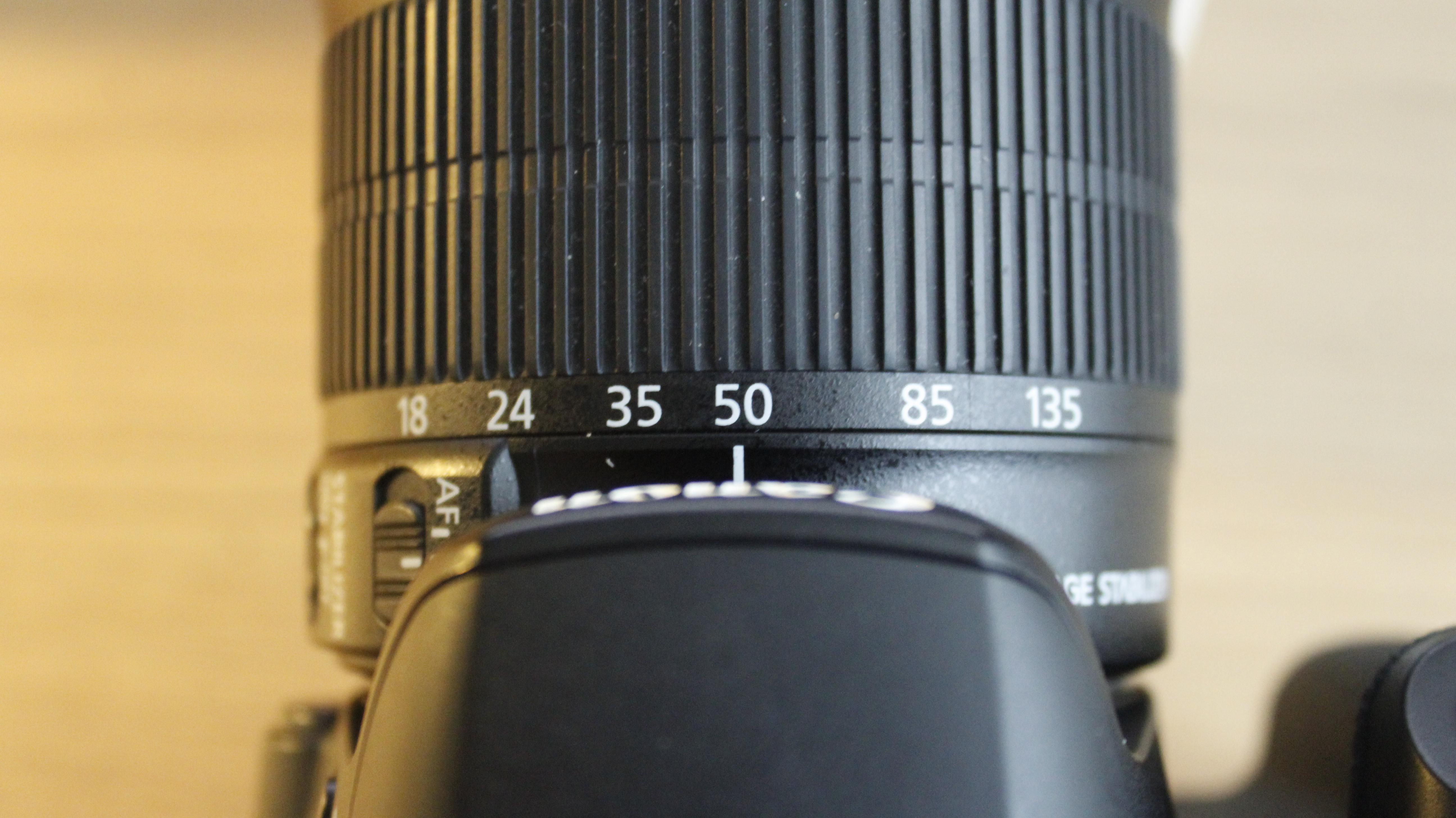
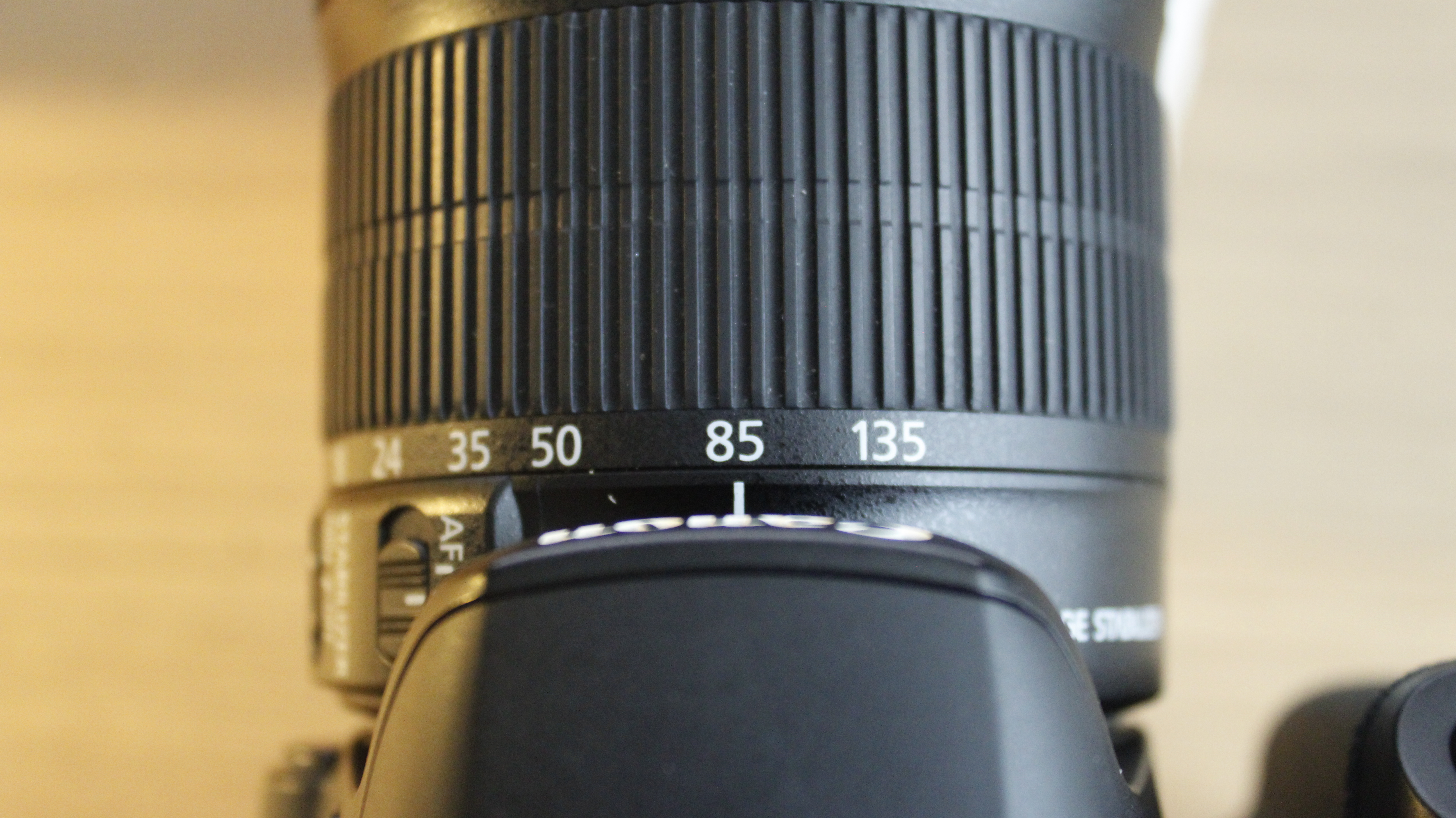
Use the white line indicator on the lens to align the zoom ring with the required focal length.
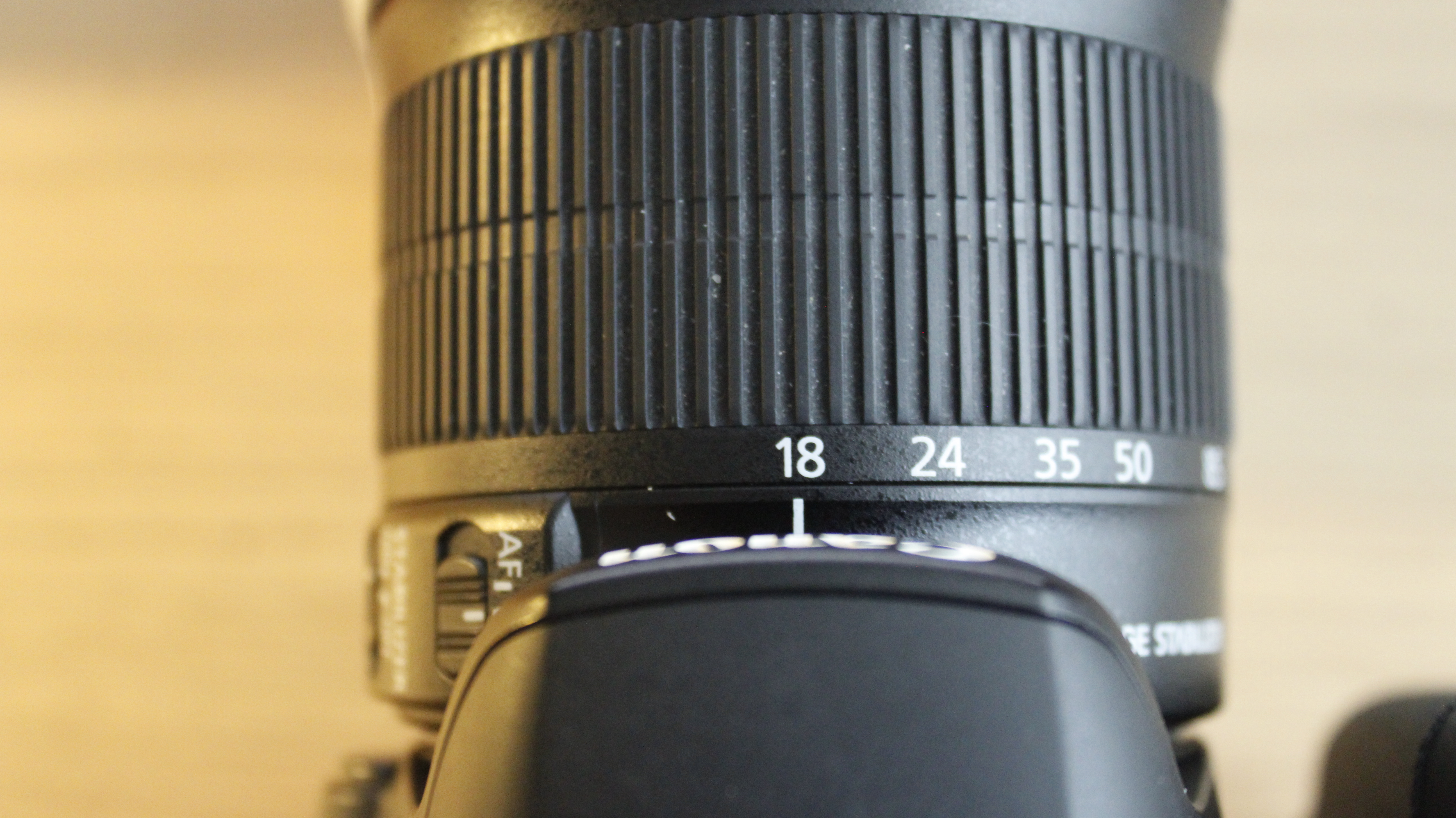
Canon 18–135 mm lens set to 18 mm. The white line indicator is aligned with 18.
18 mm: Turn the zoom ring until the white line indicator aligns with 18.
Canon 18–135 mm lens set to 50 mm. The white line indicator is aligned with 50.
50 mm: Turn the zoom ring until the white line indicator aligns with 50.
Canon 18–135 mm lens set to 85 mm. The white line indicator is aligned with 85.
85 mm: Turn the zoom ring until the white line indicator aligns with 85.

Camera distance and perspective

Perspective describes the apparent spatial relationship between objects at different distances from the camera.

Camera position determines perspective:

  • Moving the camera closer can exaggerate the apparent distance between foreground and background.
  • Moving the camera farther away can make foreground and background appear closer together.
  • A close camera position can make near objects appear much larger than distant objects.
  • A distant camera position can make the background appear larger relative to the main subject.

When photographers use a longer focal length and move farther away to maintain similar subject framing, the background often appears larger and closer to the subject. This effect is commonly described as compression, but it results primarily from the increased camera distance.

The lens changes the framing. Moving the camera changes the perspective.

What is depth of field?

Explore the Depth of Field Simulator to compare how focal length, aperture, camera distance, and subject distance affect depth of field.

Depth of field is the area in front of and behind the focus point that appears acceptably sharp.
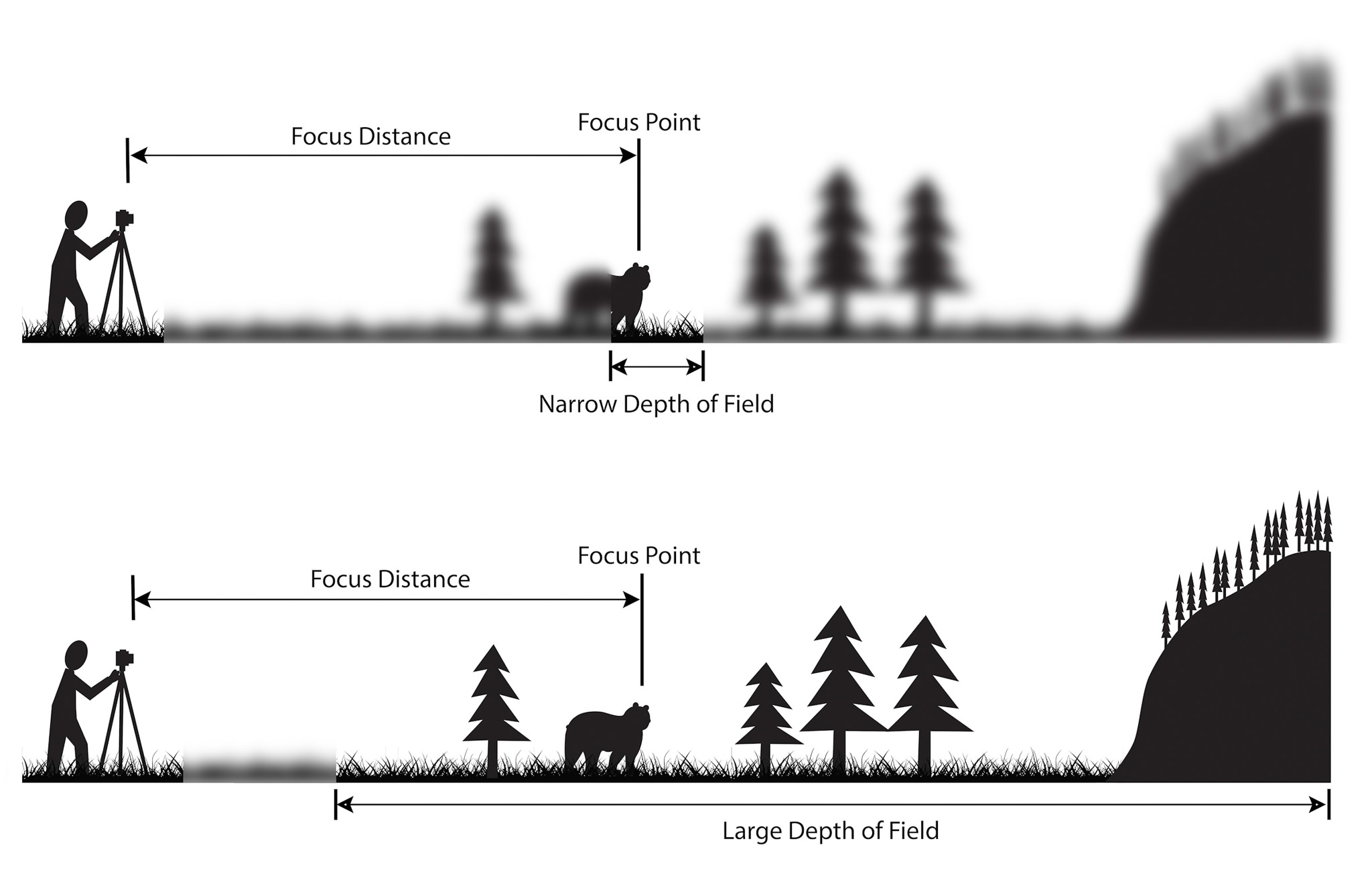
Diagram illustrating shallow and deep depth of field

  • A shallow depth of field keeps a limited area in focus while other areas appear blurred.
  • A deep depth of field keeps a larger area of the scene in focus.

Depth of field is affected by several connected factors:

Aperture

  • A wider aperture with a lower f-number generally creates a shallower depth of field.
  • A narrower aperture with a higher f-number generally creates a deeper depth of field.

Camera distance

  • Moving closer to the focus point generally creates a shallower depth of field.
  • Moving farther from the focus point generally creates a deeper depth of field.

Focal length

  • Shorter focal lengths generally make it easier to maintain a deeper area of focus.
  • Longer focal lengths generally make it easier to isolate the subject with a shallower area of focus.

Background distance

  • A background close to the subject may appear more defined.
  • A background farther behind the subject is more likely to appear blurred.

Focal length, aperture, camera distance, and background distance work together. Do not evaluate any one factor in isolation.

Compare the examples

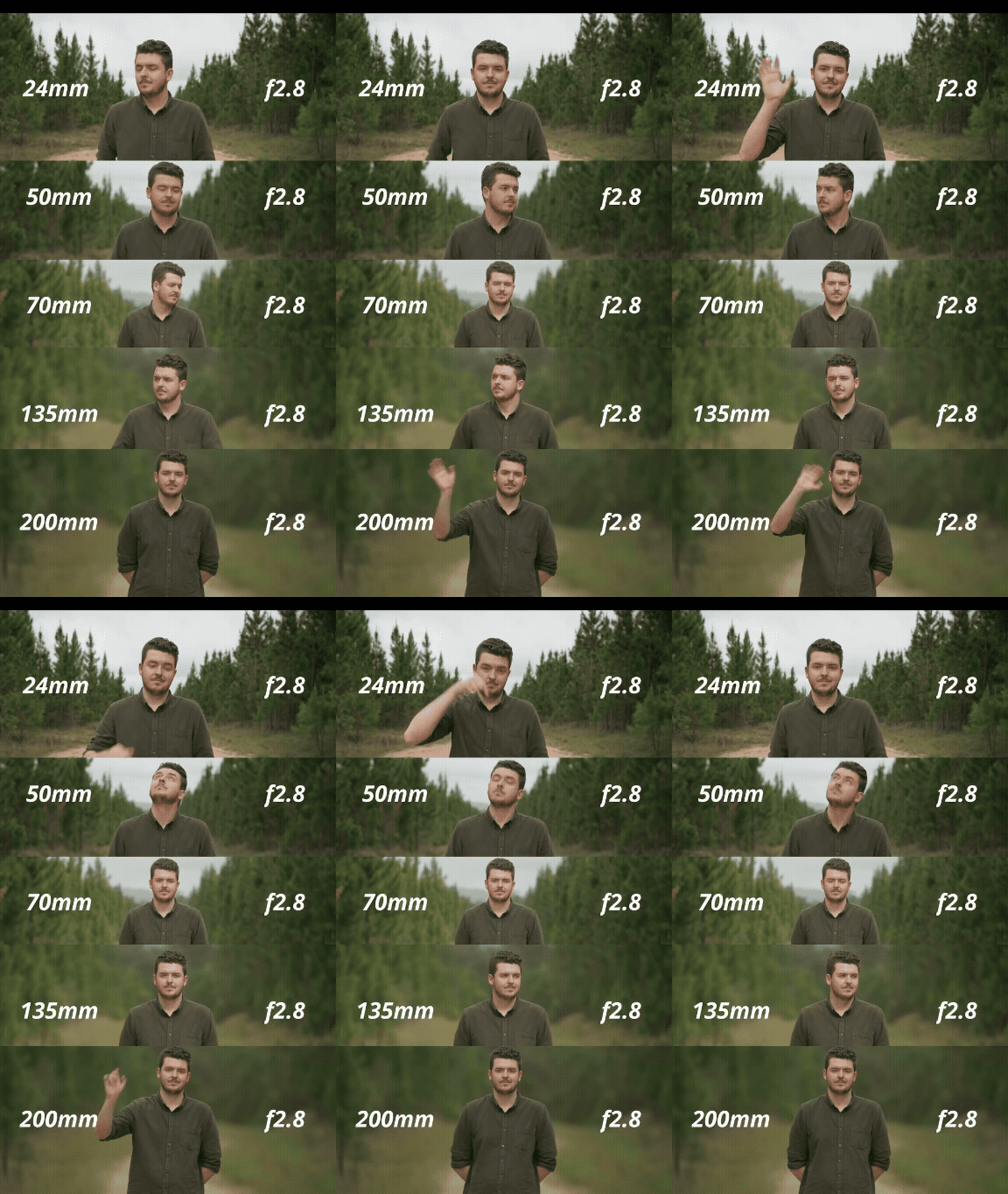
Same camera position
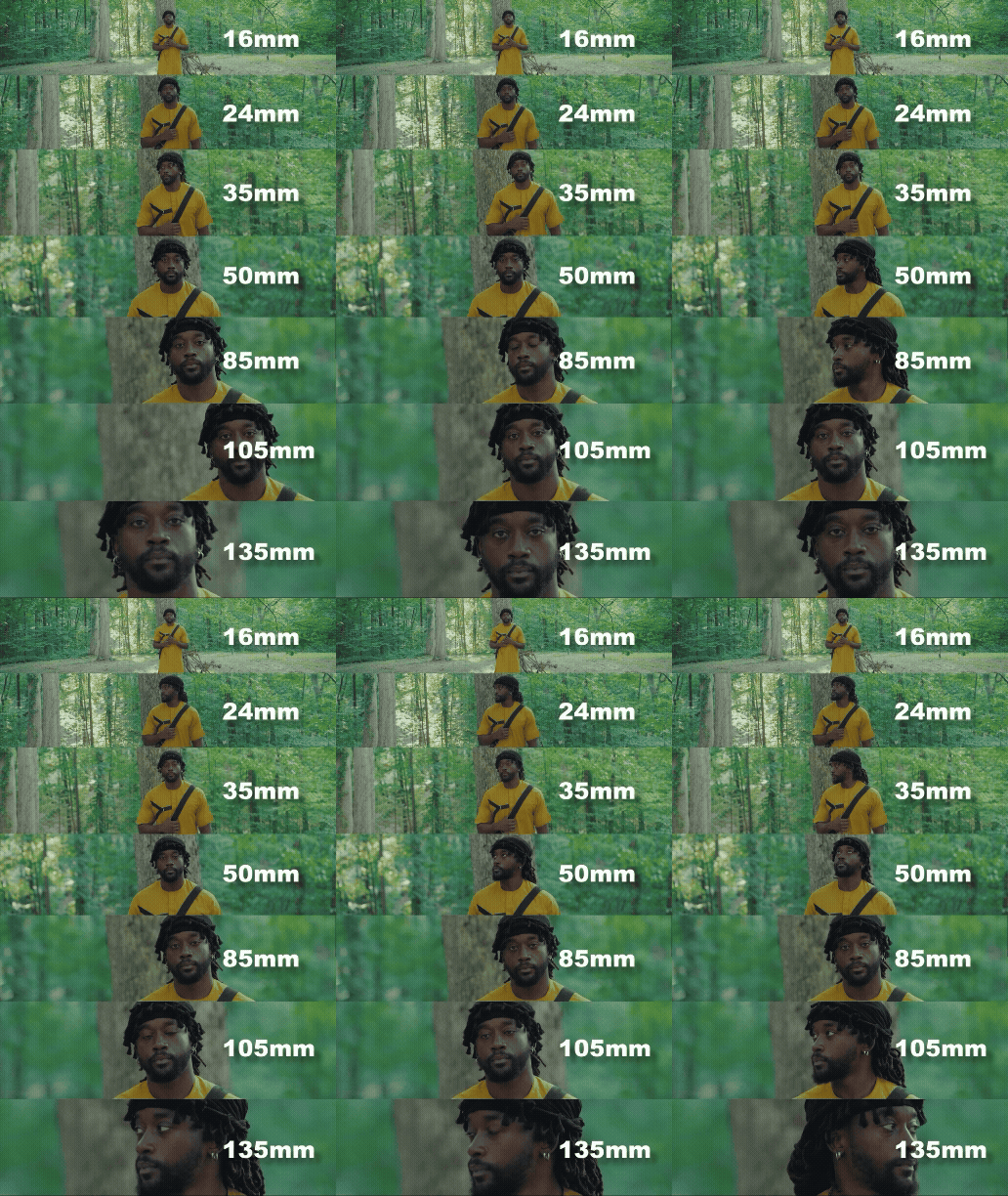
First focal-length comparison photographed from a fixed camera position.
Comparison 1: A wider field of view from the fixed camera position.
Second focal-length comparison photographed from the same fixed camera position.
Comparison 2: A narrower field of view from the same camera position.
Third focal-length comparison photographed from the same fixed camera position.
Comparison 3: A much narrower field of view from the same camera position.

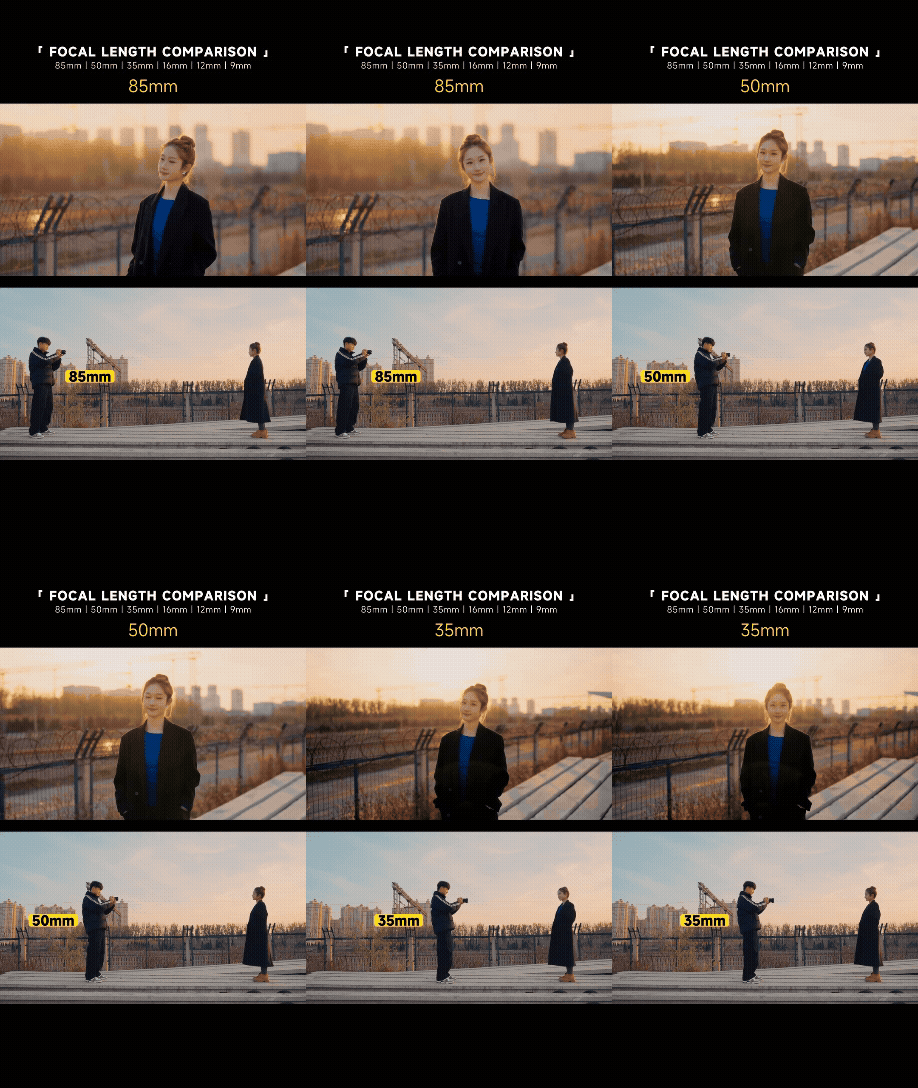
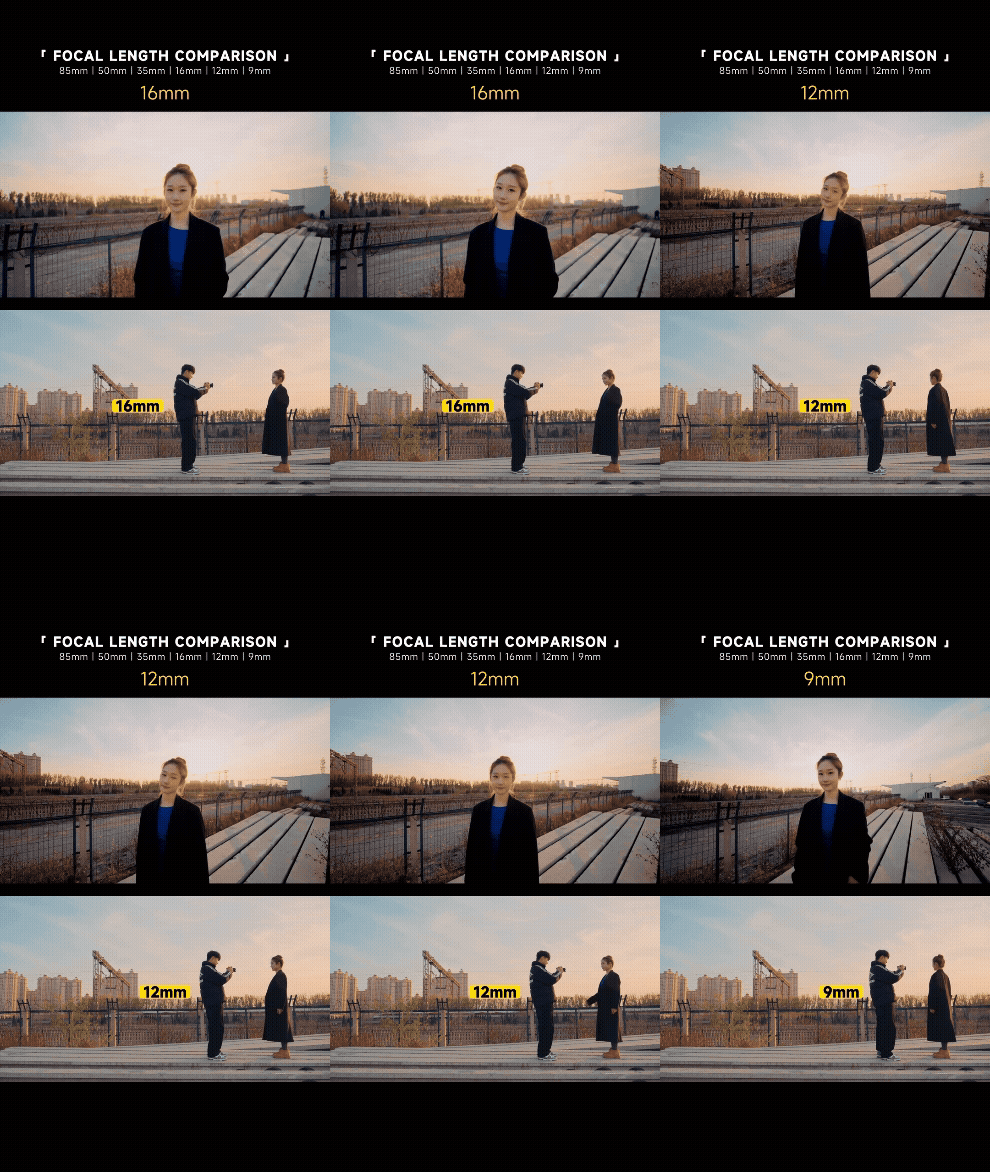
In this comparison, the subject and camera position remain unchanged while the focal length changes. Compare:

  • How much of the environment is visible
  • The size of the subject within the frame
  • The apparent size of background details
  • Which parts of the scene are excluded at longer focal lengths

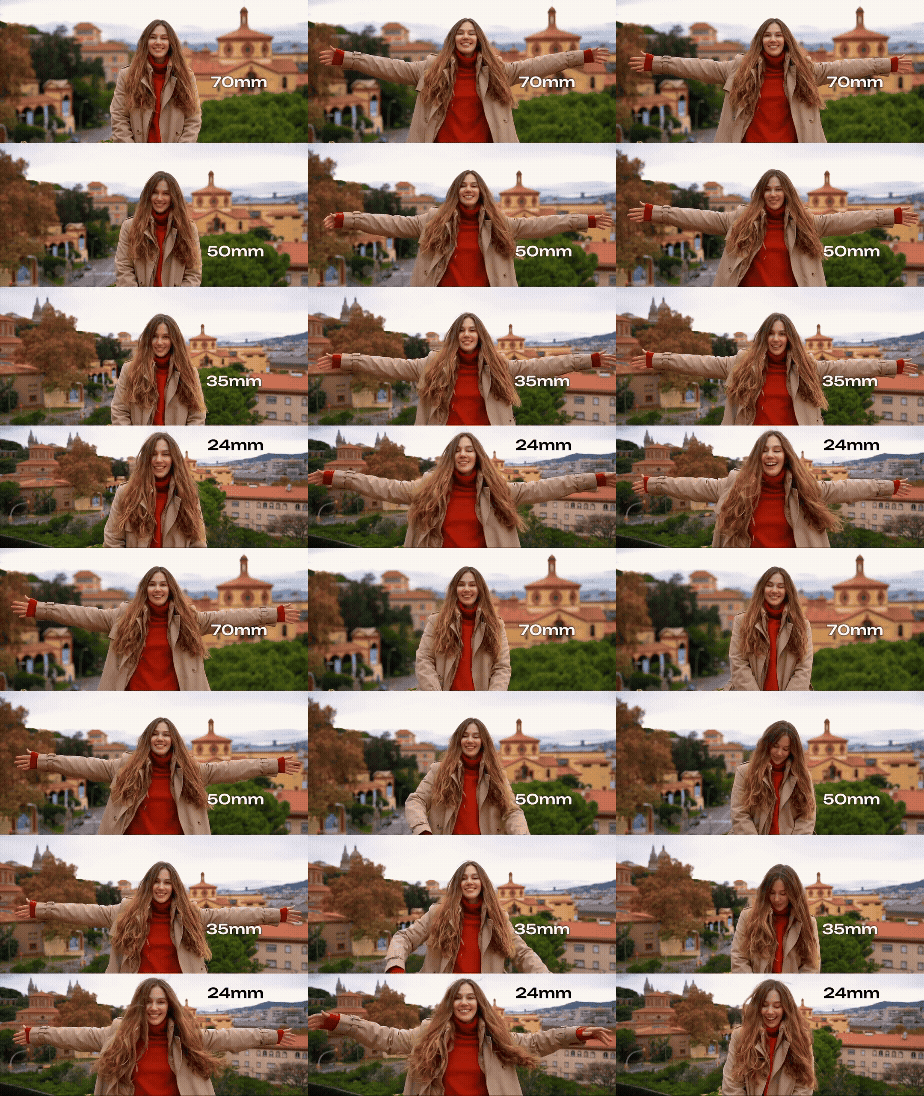
Similar subject framing from different camera distances
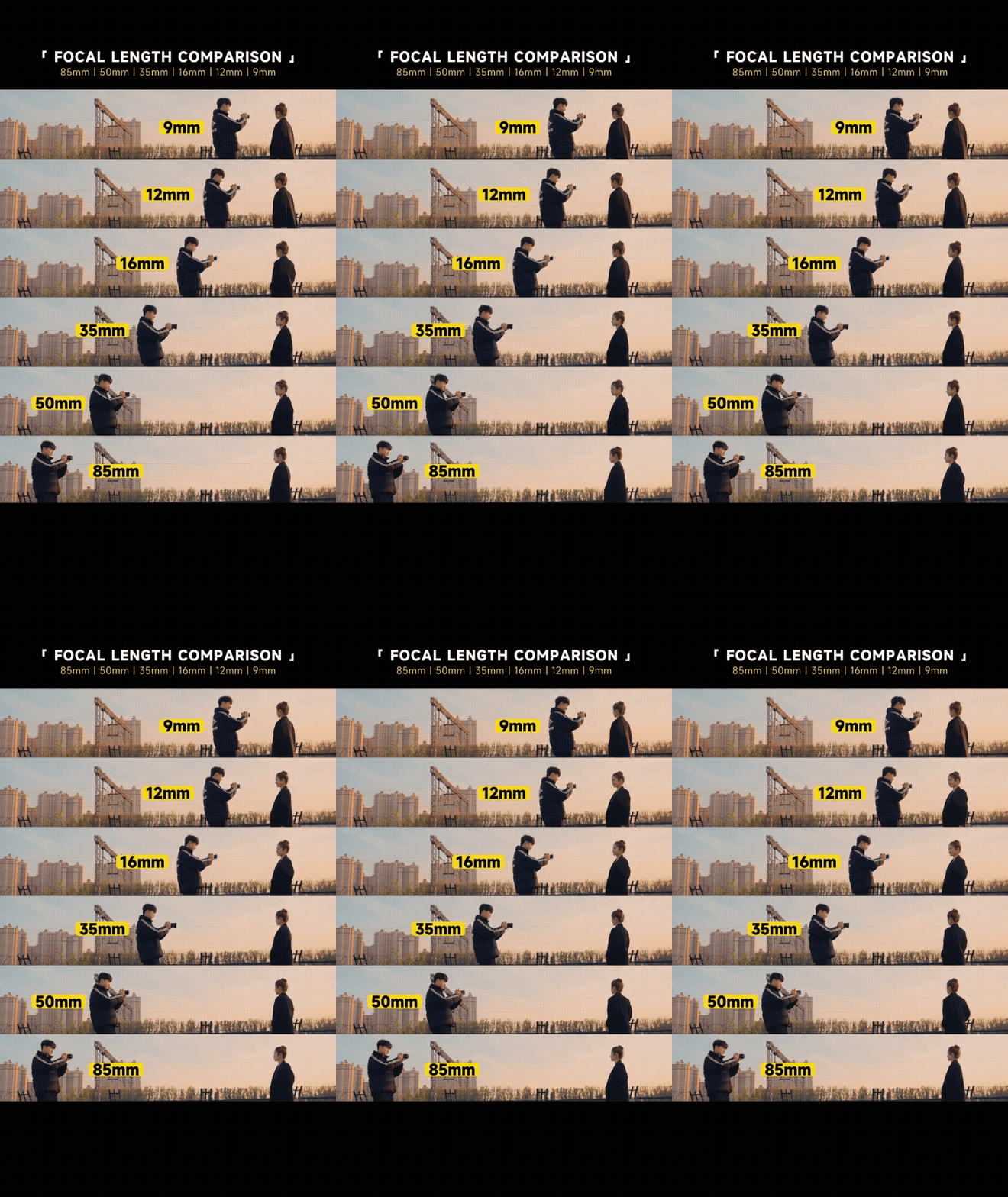
Wide focal length used from a close camera position while maintaining the planned subject framing.
Distance comparison 1: A wider focal length from a closer camera position.
Middle focal length used from an intermediate camera position while maintaining similar subject framing.
Distance comparison 2: A middle focal length from an intermediate camera position.
Long focal length used from a distant camera position while maintaining similar subject framing.
Distance comparison 3: A longer focal length from a more distant camera position.

In this comparison, the subject remains in the same location while the focal length and camera distance change. The subject should remain approximately the same size in every frame.

Compare:

  • The apparent distance between the subject and background
  • The amount of background visible
  • The apparent size of background objects
  • The shape and spatial relationship of foreground and background elements
  • The depth of field

βš™οΈ Technical Card: Focal Length and Distance

Time: 60–75 minutes

Goal: Photograph two controlled comparisons using different focal lengths and camera distances, then create a technical card showing changes in field of view, perspective, and depth.

You will work with a partner for camera setup, tripod support, distance checks, and feedback. Each participant must photograph and create their own Focal Length and Distance Technical Card.


2. Prepare the camera and location Select a subject and background, establish fixed manual exposure settings, and prepare the tripod for two controlled comparisons.

Location and subject requirements

Choose a safe location with:

  • One stationary main subject
  • A clearly visible background several metres behind the subject
  • Foreground, middle-ground, and background information
  • Stable light
  • Minimal pedestrian traffic
  • Enough space to move the tripod closer to and farther from the subject
  • A clear path between each camera position

Suitable subjects include:

  • A person who can remain stationary
  • A sculpture
  • A sign
  • A bench
  • A plant or small tree
  • An architectural detail
  • Another object with a clearly identifiable shape

The subject and background must remain in the same positions throughout both comparisons.

Do not use a moving subject. The activity examines focal length, camera position, perspective, and depth of field rather than movement.

Establish the composition

Before photographing:

  1. Decide which subject will remain the main focus point.
  2. Identify a background with visible details that can be compared.
  3. Confirm that there is enough room to use 18 mm, 50 mm, and 135 mm.
  4. Decide how large the subject should appear in the second comparison.
  5. Check the edges of the frame for distractions.
  6. Confirm that the tripod can be moved safely between positions.

Check πŸ“ Photography Composition Reference Guide.

Base camera settings

Focal length and distance comparison settings

Confirm the exposure

Before the next step:

  1. Set the focal length to 50 mm.
  2. Set the aperture to f/8.
  3. Begin with 1/125 and ISO 400.
  4. Take a test photograph.
  5. Display the histogram.
  6. Check that important highlights and shadows retain the required detail.
  7. Adjust the shutter speed or ISO when necessary.
  8. Once the final aperture, shutter speed, and ISO are selected, keep them unchanged for all six final photographs.

When outdoor light changes significantly, stop the activity. Re-establish one fixed exposure and restart both comparisons so the six photographs remain technically consistent.

3. Photograph the focal length and distance comparisons Create one comparison from a fixed camera position and a second comparison using different camera distances with similar subject framing.
Shutter-speed scale comparing slower and faster shutter speeds and their effects on movement and exposure.
Comparison A: Same camera position with different focal lengths.
Animated comparison showing how different shutter speeds affect movement and image brightness.
Comparison B: Framing from different distances with different focal lengths.

Comparison A: Same camera position

This comparison demonstrates how focal length changes the field of view while the camera perspective remains unchanged.

Prepare the fixed position

  1. Confirm fix placement and exposure settings (Aperture, ISO, and shutter speed)
  2. Frame the scene at 85 mm and set the composition and the focus.
  3. Confirm that the main subject and background are visible.

Photograph the three focal lengths

Photograph from the same camera position using:

  1. 18 mm
  2. 50 mm
  3. 135 mm

Photographing and backup procedure

At each shutter speed:

  1. Set the required focal length.
  2. Take the first photograph.
  3. Review the photograph on the camera.
  4. Magnify the main subject to check focus.
  5. Check for camera movement, subject movement, or unexpected blur.
  6. Take a second photograph using the same settings as a backup.
  7. Take a third photograph only when one of the first two has a visible problem.

You will select the strongest photograph from each pair when creating the GIF.

Comparison B: Similar subject framing from different distances

This comparison demonstrates how moving the camera changes perspective.

The subject should appear approximately the same size in all three photographs. Change the focal length and move the camera to create similar framing.

Photograph the three focal length and distance combinations

Do not move the subject to create the framing. Move the camera and tripod.

Photograph 1: 18 mm from a close position

  1. Confirm exposure settings (Aperture, ISO, and shutter speed)
  2. Set the focal length to 18 mm.
  3. Move the tripod closer to the subject.
  4. Frame the subject at the planned size.
  5. Lock the tripod.
  6. Refocus on the same point on the subject.
  7. Take two photographs.

Photograph 2: 50 mm from an intermediate position

  1. Set the focal length to 50 mm.
  2. Move the tripod farther from the subject.
  3. Match the subject size and placement from the first photograph as closely as possible.
  4. Lock the tripod.
  5. Refocus on the same point.
  6. Take two photographs.

Photograph 3: 135 mm from a distant position

  1. Set the focal length to 135 mm.
  2. Move the tripod farther from the subject again.
  3. Match the subject size and placement from the first two photographs.
  4. Lock the tripod.
  5. Refocus on the same point.
  6. Take two photographs.

Record the settings

Frame Comparison Focal Length Approximate Camera Distance Aperture Shutter Speed ISO Observation
A1 Same position 18 mm Β  Β  Β  Β  Β 
A2 Same position 50 mm Β  Β  Β  Β  Β 
A3 Same position 135 mm Β  Β  Β  Β  Β 
B1 Similar framing 18 mm Β  Β  Β  Β  Β 
B2 Similar framing 50 mm Β  Β  Β  Β  Β 
B3 Similar framing 135 mm Β  Β  Β  Β  Β 
4. Transfer, review, and organize the photographs Import all camera files, select one photograph from each setup, and rename the six selected JPEG files.

Transfer all files

The camera records each photograph twice: as a JPEG file and as a Canon RAW file (.CR2).

  1. Turn off the camera.
  2. Remove the SD card.
  3. Insert the SD card into a card reader.
  4. Open the existing Technical Cards project folder.
  5. Copy all RAW and JPEG files from the SD card.
  6. Confirm that the files open correctly.
  7. Do not work directly from the SD card.

Add a Focal-Length-Distance folder to the existing project structure:

Name-Lastname-Technical-Cards/
β”œβ”€β”€ Aperture/
β”œβ”€β”€ ISO/
β”œβ”€β”€ Shutter-Speed/
β”œβ”€β”€ Focal-Length-Distance/
β”‚   β”œβ”€β”€ RAW/
β”‚   β”œβ”€β”€ JPEG/
β”‚   β”œβ”€β”€ Selected/
β”‚   └── Exported-JPEG/
└── White-Balance/

Sort the files:

  • Copy all .CR2 files into the RAW folder.
  • Copy all .JPG or .JPEG files into the JPEG folder.

Review the JPEG photographs

For each setup:

  1. Compare the photographs made with the same focal length and camera position.
  2. Confirm that the intended focus point is sharp.
  3. Check the exposure and histogram.
  4. Confirm that the subject and background remained stationary.
  5. Check that the framing follows the comparison requirements.
  6. Check that no unexpected person or object entered the composition.
  7. Select the strongest photograph.
  8. Copy the selected JPEG into the Selected folder.

Copy the selected files rather than moving them. Keep all original JPEG and RAW files in their existing folders.

Rename Comparison A files

Rename the three files made from the same camera position:

A1-Same-Position-18mm.jpg
A2-Same-Position-50mm.jpg
A3-Same-Position-135mm.jpg

Rename Comparison B files

Rename the three files made with similar subject framing:

B1-Similar-Framing-18mm.jpg
B2-Similar-Framing-50mm.jpg
B3-Similar-Framing-135mm.jpg
5. Create GIFs in Photoshop Label the photographs, load them as layers, and export looping GIF files.

Complete these steps separately for each GIF: Comparison A and Comparison B.

For this activity, use only the JPEG files in each Selected folder.

1. Add information to each selected photograph

  1. Open the photograph in Photoshop:
    • Right-click the file.
    • Select Open With β†’ Adobe Photoshop.
  2. Select the Type Tool (T).
  3. Add the setting shown in the photograph:
    • Comparison A: Same distance - 18mm, Same distance - 50mm, etc.
    • Comparison B: Different distance - 18mm, Different distance - 50mm, etc.
  4. Use a simple, readable sans-serif font.
  5. Keep the font, size, alignment, and colour consistent across all six photographs.
  6. Position the label in the same place on every photograph.
  7. Use View β†’ Rulers and drag guides from the rulers to align the labels consistently.
  8. Make sure the text is clearly visible against the photograph. Add a simple solid background behind the text when necessary.
  9. Save image: File β†’ Save

Check the Photoshop Text Tool and ruler tutorials below before adding the labels. Repeat the same process with each image.

2. Create a new Photoshop document

Follow the video tutorial below, then use these document settings.

  1. Open Photoshop.
  2. Select File β†’ New.
  3. Enter the following settings:
    • Width: 1920 pixels
    • Height: 1080 pixels
    • Orientation: Landscape
    • Resolution: 150 pixels/inch
    • Colour Mode: RGB Colour
  4. Click Create.
  5. Continue to the next step.

3. Create the GIF

Follow the video tutorial below to create a frame animation in Photoshop.

  1. In Photoshop, select File β†’ Scripts β†’ Load Files into Stack.
  2. Click Browse.
  3. Select the six labelled JPEG files from the corresponding Selected folder.
  4. Click Open, then click OK.
  5. In the Layers panel, confirm that each photograph appears on a separate layer.
  6. Select Window β†’ Timeline.
  7. In the Timeline panel, select Create Frame Animation.
  8. Open the Timeline panel menu.
  9. Select Make Frames From Layers.
  10. Confirm that the frames appear in the correct order:
    • Shutter Speed: faster to slower value
  11. When the frames appear in reverse order:
    • Select all frames.
    • Open the Timeline panel menu.
    • Select Reverse Frames.
  12. Select all six frames.
  13. Set the duration to approximately 1.5 seconds per frame.
  14. Set the looping option to Forever.
  15. Press Play and review the complete animation.
  16. Continue to the next step.

Export GIF

  1. Select File β†’ Export β†’ Save for Web (Legacy).
  2. Select GIF.
  3. Confirm that looping is set to Forever.
  4. Save as:
    • Name_Shutter-Focal-Lengh-1.gif
    • Name_Shutter-Focal-Lengh-2.gif

Open the exported GIF in a web browser and watch it from beginning to end.

7. Return the camera to the base settings Reset the camera after the focal-length comparison so it is ready for the next photography activity.

After transferring all files, return the camera to these base settings.

Base settings for the next activity

What is next?

Continue with πŸ—£οΈ Technical Cards Exhibition and Group Review


Credits: Jessica A. RodrΓ­guez