📸 Additional DSLR Camera Settings
Goal: Use metering, the histogram, exposure compensation, Auto Exposure Bracketing, and Custom White Balance to respond to difficult lighting conditions.
1. Prepare the camera Confirm the standard settings before testing the additional exposure and colour controls.
2. Use metering and the histogram Compare the camera’s exposure estimate with the brightness information recorded in the photograph.
What is metering?
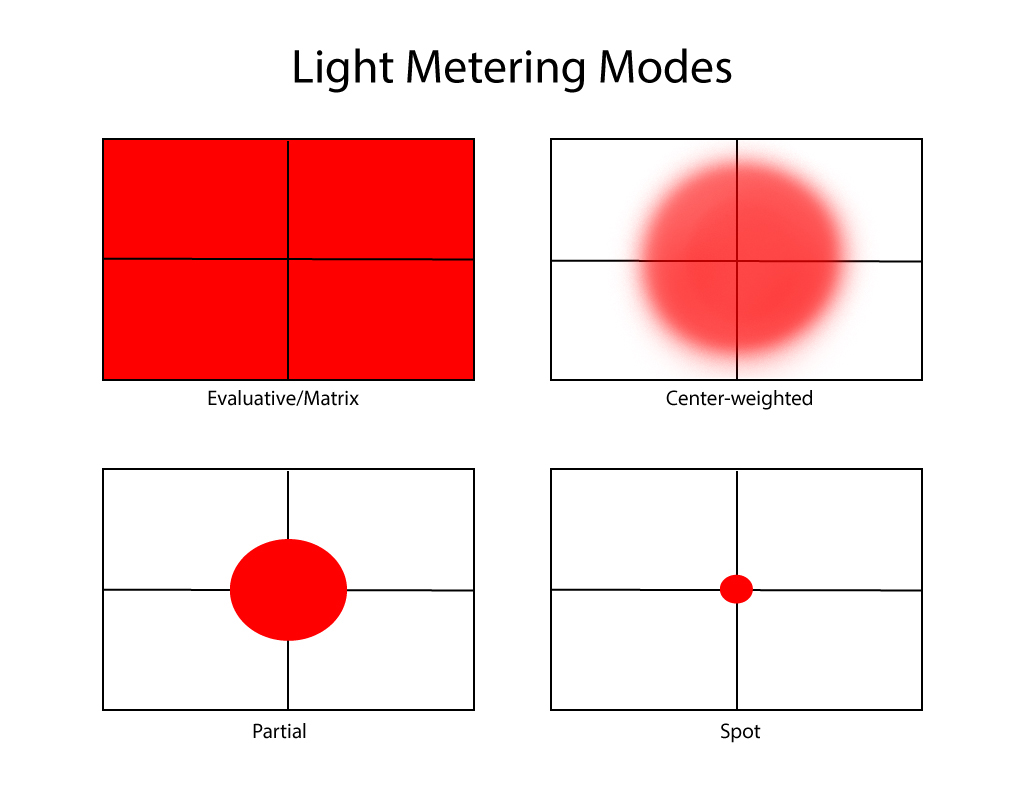
Metering is the camera system that measures the brightness of a scene and estimates an exposure.
Begin with Evaluative metering. The other modes provide greater control when the subject and background have significantly different brightness levels.
Light metering modes Know more about the metering options in a Canon DSRL Camera.
Select a numbered area to learn how each metering mode measures light.
Set Evaluative Metering
- Press the Q button.
- Select the Metering Mode setting.
- Select Evaluative Metering.
- Press SET to confirm.
What is a histogram?
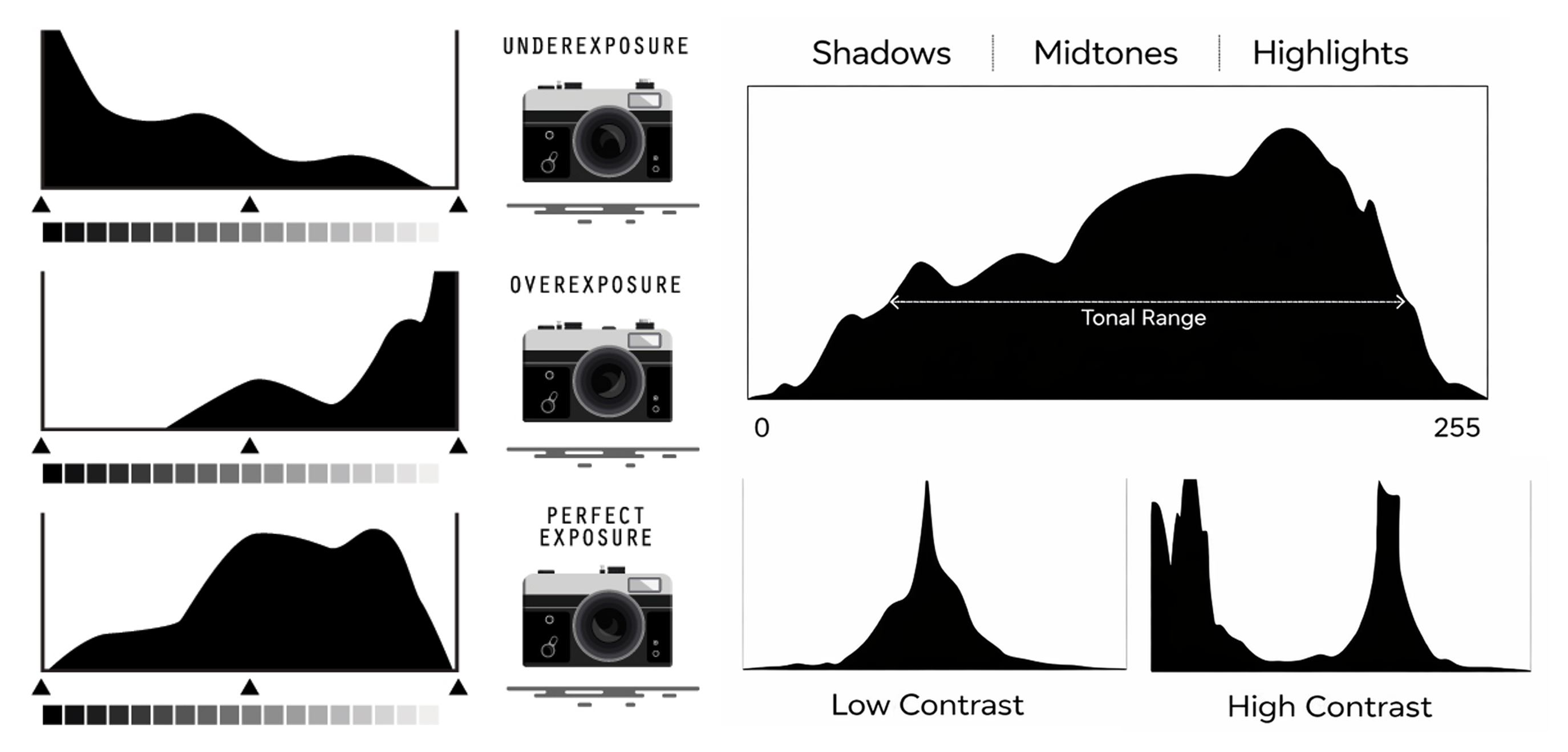
A histogram is a graph showing how brightness values are distributed across the photograph.
| Histogram area | Represents |
|---|---|
| Left | Shadows and darker values |
| Centre | Midtones |
| Right | Highlights and brighter values |
A histogram does not need to have one ideal shape. Its shape should reflect the photographed scene.
Watch for:
- A strong pile-up against the far right, which may indicate lost highlight detail
- A strong pile-up against the far left, which may indicate lost shadow detail
- Important information touching either edge
Display the histogram
- Take a photograph.
- Press the Playback button.
- Press the INFO button until the histogram appears.
- Compare the graph with the visible photograph.
- Magnify important bright and dark areas when necessary.
Metering and histogram practice
Take one photograph using the camera’s recommended exposure.
Record:
| Setting | Observation |
|---|---|
| Aperture | |
| ISO | |
| Shutter speed selected by camera | |
| Brightest area | |
| Darkest area | |
| Histogram touching the left edge? | Yes / No |
| Histogram touching the right edge? | Yes / No |
| Exposure adjustment needed? |
3. Use exposure compensation Make the camera’s recommended exposure intentionally darker or brighter.
What is exposure compensation?
Exposure compensation changes the camera’s recommended exposure without leaving Aperture Priority mode.
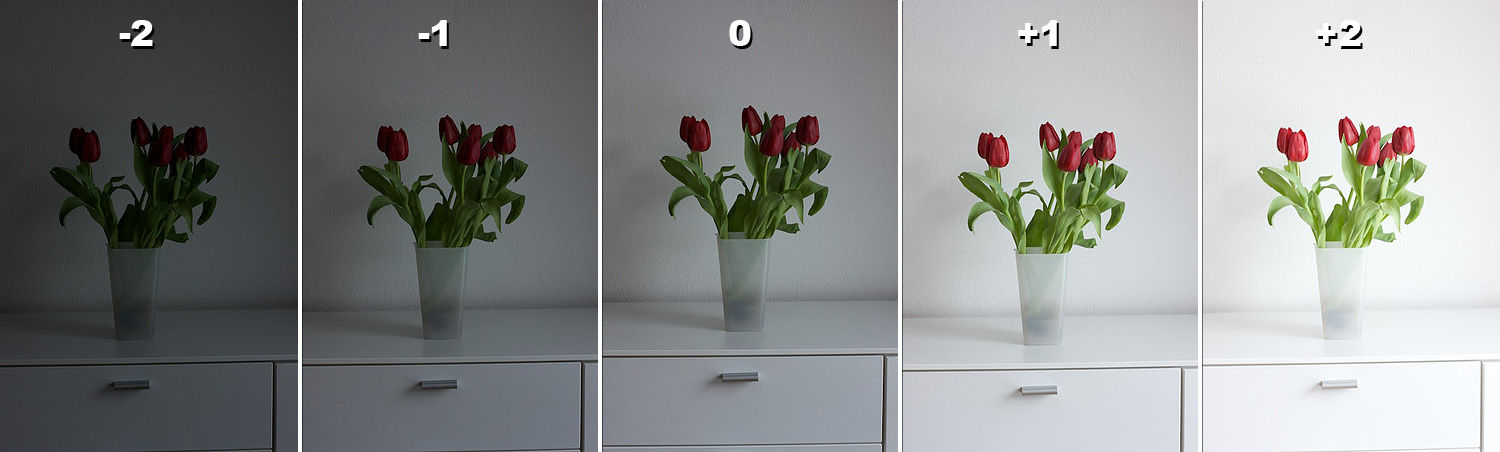
- A negative value makes the photograph darker
- A positive value makes the photograph brighter
- A value of
0uses the camera’s standard exposure estimate
Use exposure compensation when the photograph looks too dark or too bright even though the meter considers it balanced.
Change exposure compensation
Quick Control method
- Confirm that the Mode Dial is set to
Av. - Press Q.
- Select the Exposure Compensation/AEB scale.
- Use the navigation controls to activate the exposure-compensation adjustment.
- Turn the Main Control Dial toward:
- Negative values for a darker image
- Positive values for a brighter image
- Press SET to confirm.
Button and dial method
- Hold the Av +/- button.
- Turn the Main Control Dial.
- Release the button when the marker reaches the intended value.
Create a three-photograph comparison
Photograph the same scene using:
-1 exposure compensation
 0 exposure compensation
+1 exposure compensation
Do not move the camera or subject.
Compare:
- Highlight detail
- Shadow detail
- Subject visibility
- Histogram position
- Overall intention
| Photograph | Compensation | Which details are preserved? |
|---|---|---|
| Darker | -1 |
|
| Camera estimate | 0 |
|
| Brighter | +1 |
Return exposure compensation to
0after completing the comparison.
4. Set a Custom White Balance Use a neutral reference to create a colour balance for the current lighting.
What is Custom White Balance?
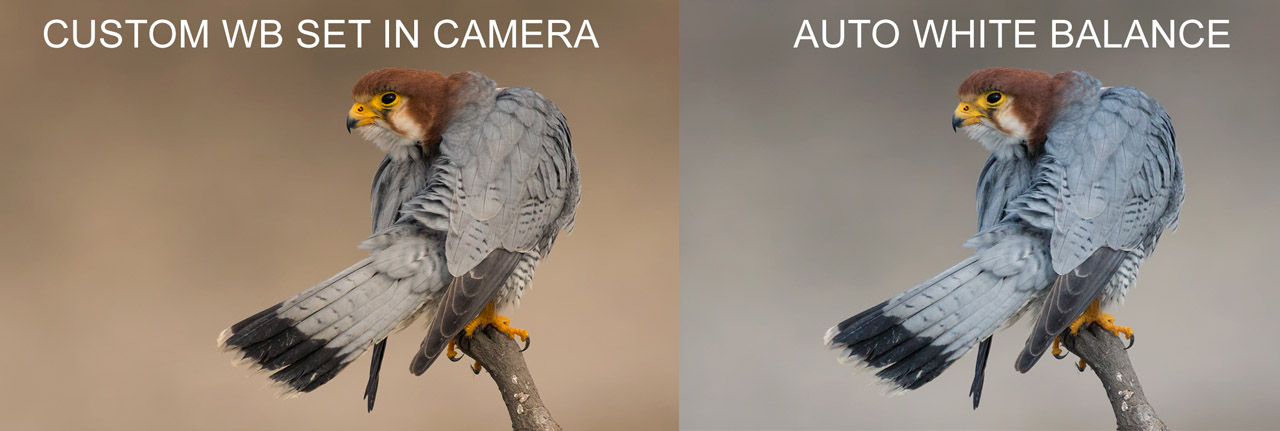
White balance adjusts how the camera records the colour of the light illuminating a scene.
Automatic and preset white-balance settings are general estimates. A Custom White Balance uses a photograph of a neutral reference to measure the light in the actual location. This is useful to maintain consistent colour.
Prepare the reference
Use:
- A neutral grey card
- A white balance card
- A clean matte white sheet of paper when no neutral card is available
Avoid:
- Glossy paper
- Coloured paper
- A card reflecting light from another source
- An overexposed reference image with no visible detail
The reference must receive the same light as the subject.
Set Custom White Balance
Complete the following steps only after the lighting has been finalized:
- Place the neutral grey or white reference where the subject will be positioned.
- Confirm that the reference receives the same light as the subject.
- Fill most of the frame with the reference.
- Adjust the exposure so the reference is bright but still retains visible detail.
- Take a photograph.
- Press MENU.
- Select Custom White Balance.
- Choose the reference photograph.
- Confirm the selection.
- Press the WB button.
- Select the Custom White Balance symbol.
- Press SET.
Create a new Custom White Balance whenever the light source, light colour, or subject position changes.
Compare the results
Photograph the same scene using:
- AWB / Auto
- Daylight
- Custom White Balance
Keep aperture, ISO, framing, focus, and lighting unchanged.
| White balance | Colour observation |
|---|---|
| AWB / Auto | |
| Daylight | |
| Custom |
Consider:
- Which setting makes the neutral reference appear most neutral?
- Which setting produces the most believable colours?
- Did AWB change the colour unexpectedly?
- Does Custom White Balance improve consistency?
5. Return to Day 2 Base Camera Settings Turn off temporary settings so they do not affect the next photography activity.
Credits: Jessica A. Rodríguez